You're probably here because timestamps have annoyed you in a very practical way.
A client says, “The awkward pause is still in there around the middle.” Your editor asks which camera drifted out of sync. You scrub through a long interview trying to find one sentence you heard an hour ago. Then someone sends feedback like “fix the title card after the guest starts talking,” and nobody on the team knows whether that means now, later, or two cuts earlier.
That mess usually isn't a creative problem. It's a timestamp problem.
In one workflow, people rely on memory, vague comments, and rough guesses on the timeline. In a cleaner workflow, every note points to an exact moment, every clip has reliable timing metadata, and every revision gets discussed against the same reference point. That's the difference between chasing footage and controlling it. If you work with uploads, reviews, or publishing schedules, even basic systems like YouTube video management workflows become easier when time markers are consistent from capture through delivery.
Table of Contents
- Introduction to Why Timestamps Matter
- Understanding the Key Concepts of Timestamps
- Comparing Common Types of Timestamps
- Using Timestamps in Video Platforms
- Best Practices for Formatting Timestamps
- How Timestamp Workflows Speed Editing and Review
- Conclusion and Next Steps
Introduction to Why Timestamps Matter
A lot of creators first ask, what are timestamps, only after a project starts slipping.
You shoot a podcast with two cameras and separate audio. The A-cam looks fine. The B-cam is slightly off. The editor drops in the wide shot, and the guest's lips land a little ahead of the audio. Then the producer leaves comments like “tighten the intro” and “remove the cough near the end.” Nobody agrees on where those moments are, so the revision round turns into a scavenger hunt.
Now compare that with a project where every important moment has a precise time reference. The review note says “trim the pause at 04:12.” The subtitle file aligns to speech. The chapter list helps viewers jump to the topic they want. The team stops guessing.
Timestamps turn vague editing language into exact instructions.
That matters more than people realize. A timestamp doesn't just save time on review. It helps maintain order, confirms sequence, and keeps multiple people talking about the same frame, second, or clip. In video work, that shared reference is often what separates a rushed production from a controlled one.
Understanding the Key Concepts of Timestamps
A simple definition that actually helps
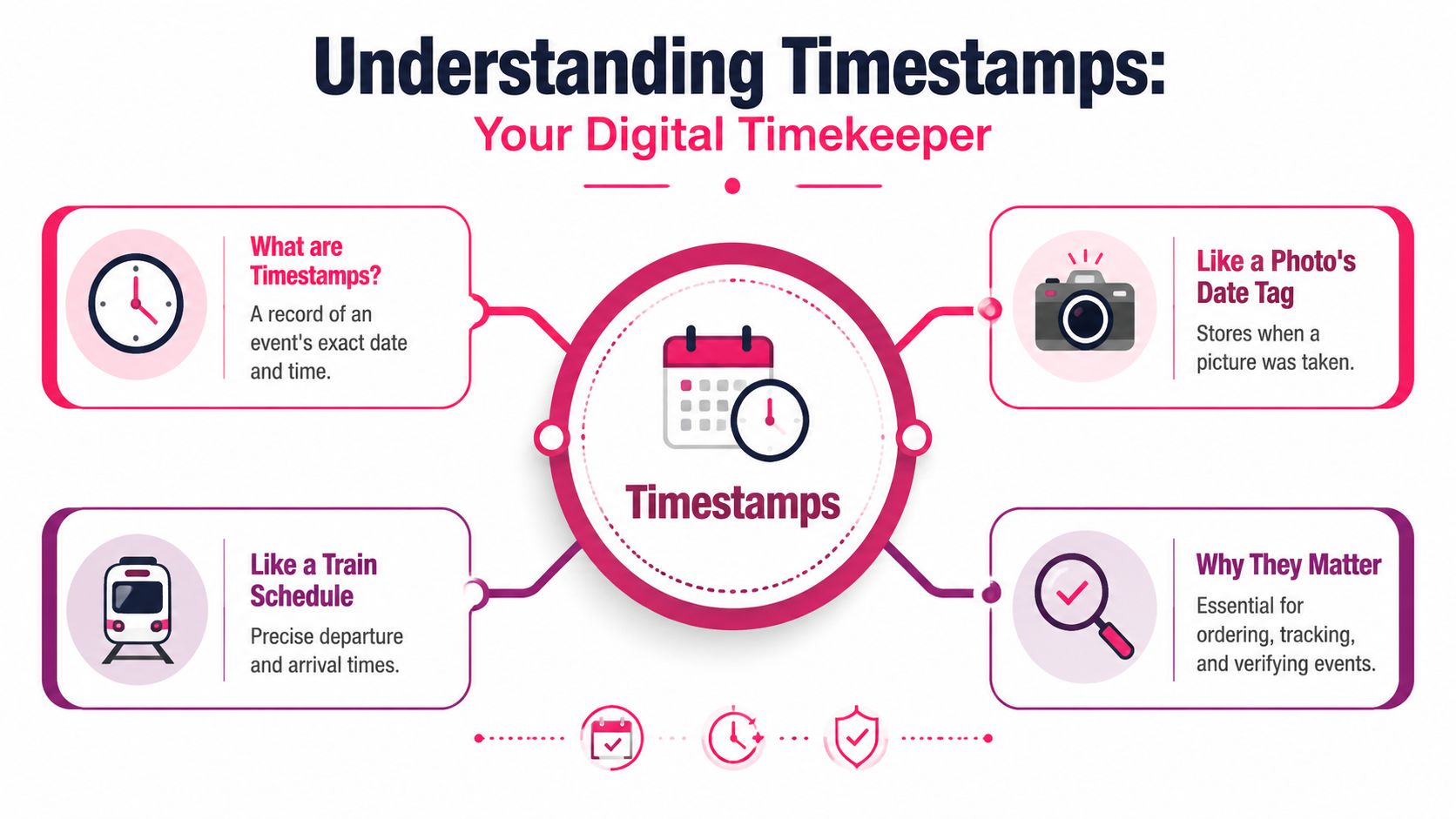
A timestamp is a recorded time attached to an event. In plain language, it answers one question: when did this happen? As noted earlier in the article, that record can be stored as readable text or as encoded data inside a file or system.
For video creators, that idea gets easier once you separate clock time from timeline time.
Clock time is the actual moment a device says something happened, such as 3:14:22 PM on a shoot day. Timeline time is the position inside a piece of media, such as 00:04:12 in an edit. Both are timestamps. They solve different problems.
A camera file's creation time helps you sort footage from the day. A note at 04:12 helps an editor jump to the right moment in the cut. Same concept, different job.
That distinction clears up a common point of confusion. Creators often use the word “timestamp” for anything time-related, but there are really a few layers involved:
- Capture timestamps: When a device says a photo, clip, or audio file was recorded.
- File timestamps: When a file was created, copied, or modified by the system.
- Editorial timestamps: Human-facing references such as 01:22 or 14:05 in notes, comments, chapters, or transcripts.
- System timestamps: Background records used by software, servers, and logs.
Some of these are visible. Some stay buried in metadata unless you inspect the file.
Why precision changes from one workflow to another
A timestamp can be accurate enough for one task and useless for another.
If you are organizing interview clips, being off by a few seconds in file metadata may not matter much. If you are syncing two cameras and separate audio in a professional edit, a small mismatch can create real trouble. The waveform may line up at the start, then drift later in the timeline. By the end of a long take, one angle can feel like it is “late” even though nobody touched the edit.
In many multi-cam projects, things get messy. The problem is not always the editor. The problem can start at capture.
Hardware timestamps and software timestamps are not the same
Hardware timestamps come from the device itself. A camera, audio recorder, or timecode box writes timing information based on its own internal clock or dedicated timing circuit.
Software timestamps are added later by an operating system, editing app, transfer tool, or platform after the media is captured, imported, transcoded, or uploaded.
That difference sounds small. In practice, it affects trust.
Hardware timing is closer to the original event. Software timing often reflects when the file was handled by a system, not when the moment occurred. If a card was copied hours later, the software may record the transfer time correctly while telling you nothing useful about the exact capture moment.
In a multi-camera workflow, this becomes more than an organizing detail. Two cameras can both show reasonable-looking times and still drift apart because their internal clocks were never precisely matched. Add a separate audio recorder with its own clock, and the gap can widen over a long recording.
A simple way to picture it is three wall clocks in one studio. They all show time. None of them show exactly the same time unless someone syncs them first, and even then they can slowly separate.
Drift is the hidden problem many creators miss
Drift happens when devices that started close together do not keep time at exactly the same rate.
This is the part many newer editors do not expect. They assume timestamps are fixed facts. In reality, timestamps depend on the clock that created them. Cheap internal clocks, heat, recording length, and device design can all affect how well those clocks stay aligned.
That is why a short social clip may appear perfectly synced while a 90-minute interview starts slipping. The issue is not always dramatic at first. A frame here, a fraction there, then a noticeable sync error by the middle or end of the session.
For professional workflows, this matters in three places:
- Syncing footage in post: Small clock differences can turn auto-sync into a manual cleanup job.
- Review and approval: Notes tied to the wrong time reference send editors to the wrong spot.
- Archiving and relinking: Inconsistent time records make it harder to trace which file belongs to which event.
Practical rule: The longer the recording and the more devices involved, the less safe it is to assume every timestamp means the same thing.
Timestamps can be visible or hidden
A YouTube chapter at 02:30 is visible. A camera's embedded metadata is usually hidden until you open it in software that can read it. An editor's marker note sits somewhere in between. It is visible inside the project, but not always exported with the media.
Understanding that difference helps you ask a better question. Instead of asking, “Does this file have a timestamp?” ask, “Which timestamp am I looking at, and who created it?”
That question saves a lot of confusion on set and in post.
It also explains why two tools can show different times for the same clip without either one being broken. One may be showing the file system's record. Another may be showing embedded camera metadata. Another may be showing the clip's position in the edit. All are time references. They are not interchangeable.
The concept is simple. The workflow impact is not.
At the basic level, timestamps are labels for time. In real production, they become the reference points that hold a project together.
Once you understand the layers, clock time versus timeline time, hardware versus software, visible versus hidden, the term stops feeling abstract. It becomes a practical editing tool. You can judge which time reference to trust, which one to ignore, and why drift in a multi-cam setup can create expensive post-production problems.
Comparing Common Types of Timestamps
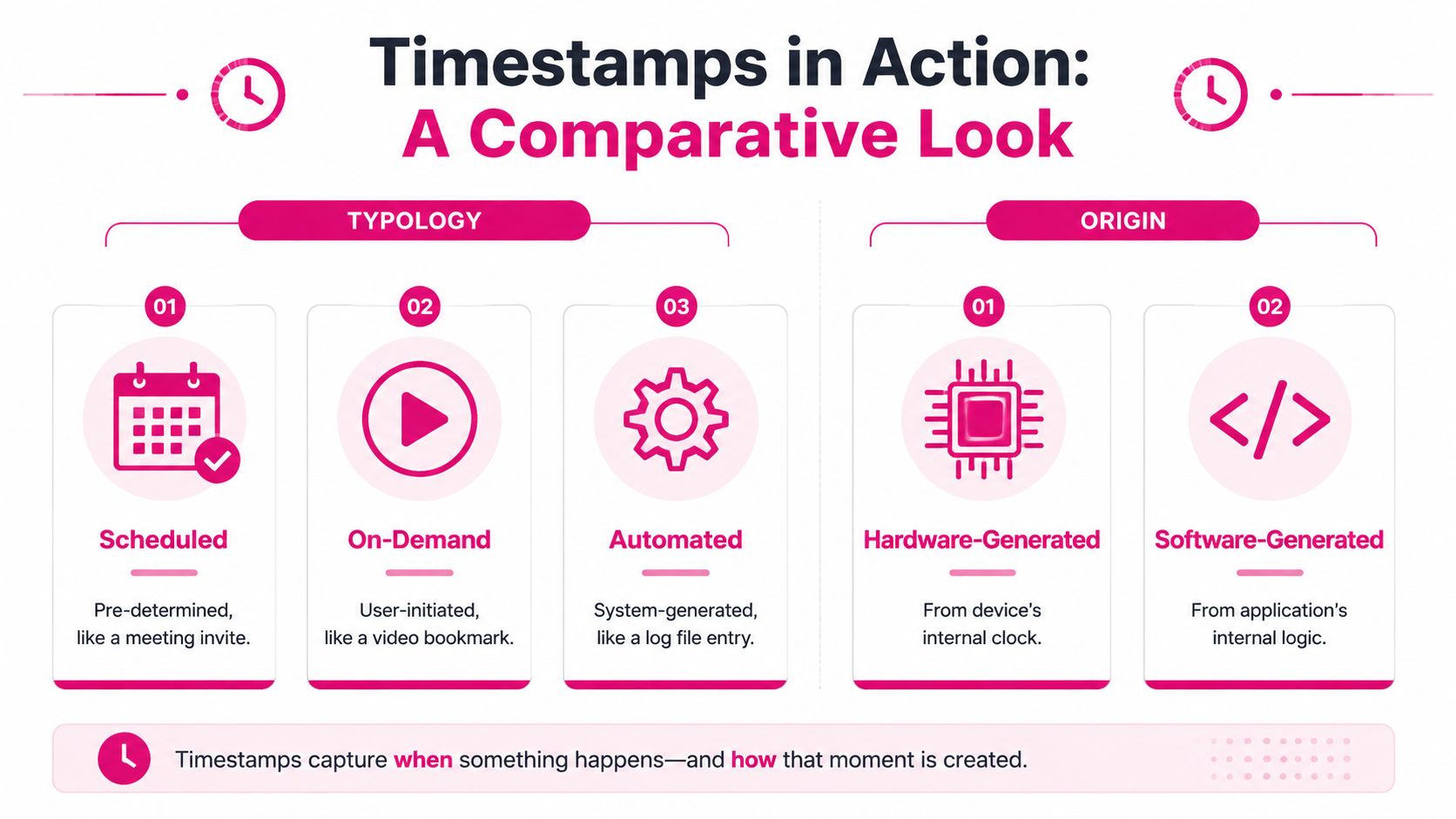
Three ways timestamps get created
When creators ask what is timestamps in a real production context, I usually answer by comparing how the timestamp is born.
Some are created by schedule. Some appear because a person marks a moment. Others are generated by the system itself. That difference affects how much trust you can place in them and what they're useful for in post.
Here's a side-by-side view:
| Type | How it happens | Familiar example | Best use |
|---|---|---|---|
| Scheduled | Planned ahead of time | A calendar cue or timed release | Coordinating fixed events |
| On-demand | Triggered by a user | A reviewer noting a moment in a cut | Feedback and navigation |
| Automated | Created by the system | File metadata or log entries | Tracking and record keeping |
On-demand timestamps are often the easiest for creators to understand because they feel intentional. You click a point in the timeline and leave a note. Automated timestamps are less glamorous, but they often carry the workflow behind the scenes.
Hardware and software are not the same thing
This is the part many creators never hear until a multi-cam edit starts acting weird.
Hardware timestamps generated inside a camera's FPGA record the true exposure time at the physical sensor, while software timestamps on a PC introduce operating system latency, which can lead to audio-video desync in multi-cam workflows, according to Tucsen's explanation of timestamp origin.
That means two timestamps can both look correct but represent different realities.
- Hardware-generated: Closer to the actual instant the camera captured the image.
- Software-generated: Added later after data reaches the computer.
- Practical effect: Small delays can stack up and become visible as sync drift.
If you've ever heard “the export must have broken sync,” there's a chance the actual issue started much earlier. The timing source itself may have been less precise than the edit required.
In multi-cam work, drift often isn't random. It comes from where the timestamp was created.
That's why high-end workflows care so much about acquisition timing. When you're cutting between angles, lining up waveforms, or matching a reaction shot to a spoken word, tiny timing differences stop being abstract. They become visible.
Using Timestamps in Video Platforms
How chapters work on YouTube
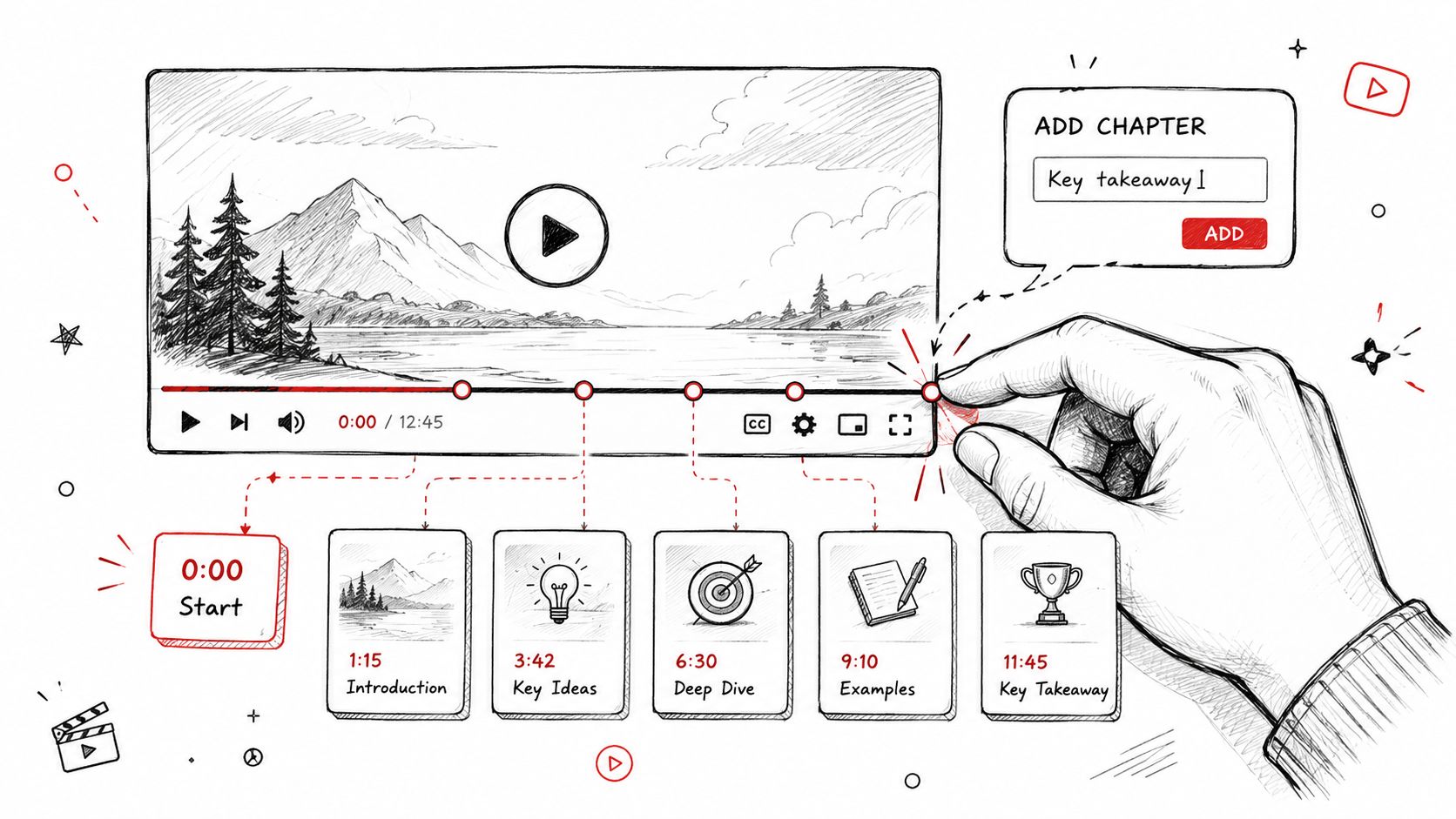
On YouTube, timestamps aren't just labels. They can become clickable chapter markers if the formatting is correct.
According to Cinema8's explanation of video timestamps, YouTube activates video chapters only when the first timestamp is 0:00, there are at least three chapters, and each chapter covers 10 seconds. If you miss the opening 0:00, the chapter feature won't activate.
That leads to a common beginner mistake. People paste a nice-looking list of moments into the description, but because the first entry starts later, none of the timestamps behave like real chapters.
A simple chapter list might look like this:
- 0:00 Intro
- 0:24 Setup
- 1:10 Main lesson
- 2:05 Example
- 3:00 Wrap-up
For creators reviewing edits in detail, frame navigation matters too. If you need more precision while checking chapter points or visual changes, frame-by-frame viewing on YouTube can help you inspect exact moments instead of relying on rough scrubbing.
Why creators use timestamps beyond chapters
Timestamps on platforms do more than help viewers skip around. They shape how people consume long videos.
In webinars, lessons, and interviews, chapter markers reduce friction. A viewer can jump directly to the answer they need. A team member can share a specific moment without writing a long explanation. A client can say “the issue starts at this timestamp” rather than “somewhere after the branding section.”
If you're handling repetitive cuts from longer recordings, tools and scripts can also use time references to split material cleanly. For example, this guide on how to simplify FFmpeg video trimming automation is useful when you already know your in and out points and want cleaner repeatable trimming.
Here's a quick visual walkthrough of chapter usage in practice:
The big takeaway is simple. On platforms, formatting turns timestamps from plain text into working navigation.
Best Practices for Formatting Timestamps
Formatting rules that prevent avoidable errors
Formatting sounds minor until a platform ignores your timestamps or a reviewer reads the wrong moment.
The safest habit is consistency. If you write timestamps in one format on YouTube, a different one in review notes, and a third one in spreadsheets, confusion creeps in fast. Teams don't just need timestamps. They need timestamps that everyone can parse instantly.
Use these rules as your baseline:
- Start clean: Use
0:00when a platform expects the opening point. - Keep alignment readable: Write
05:07instead of5:7when you want visual consistency. - Use hours when needed: Switch to
HH:MM:SSfor longer content. - Add labels: A timestamp without context forces the reader to click and guess.
- Match the environment: A subtitle file, review document, and YouTube description may each need slightly different formatting.
A good timestamp is easy to scan, hard to misread, and placed where the next person expects it.
Timestamp Formatting Examples
| Context | Format | Example |
|---|---|---|
| YouTube chapter list | MM:SS plus label | 0:00 Intro |
| Long webinar chapter list | HH:MM:SS plus label | 01:02:15 Q and A |
| Client review note | MM:SS plus issue description | 12:44 Remove pause before answer |
| Subtitle spotting | Start time to end time | 00:02:10 to 00:02:14 |
| Edit request in shared doc | Timestamp plus action | 08:31 Tighten this cut |
| Clip logging sheet | Timestamp plus clip note | 14:09 Strong reaction shot |
One thing to watch for is false precision. Don't pretend a note is frame-accurate if you only skimmed the timeline. If the instruction needs frame accuracy, mark it that way in the editing software. If it's a general review comment, a clear second mark is often enough.
How Timestamp Workflows Speed Editing and Review
A practical workflow from footage to final review
The fastest editing teams don't just cut quickly. They build projects so every important moment can be found again.
A reliable timestamp workflow usually starts before the edit. Raw footage arrives with timing metadata. The editor logs key moments. Reviewers leave notes tied to exact points in the cut. Then the timeline, comments, and deliverables all refer to the same moments instead of competing descriptions.
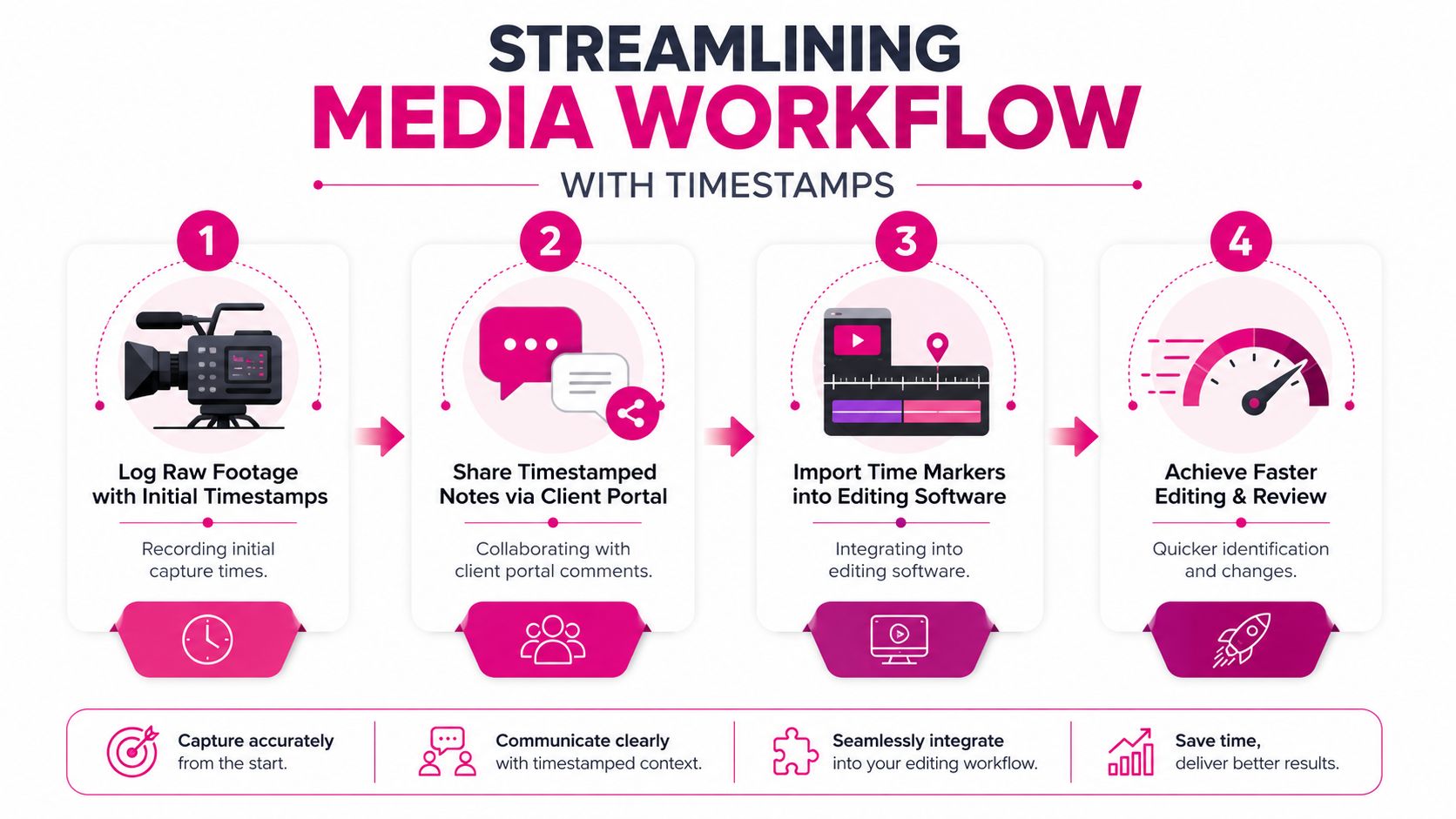
A practical sequence looks like this:
- Log raw footage early. Mark standout quotes, mistakes, resets, and visual cues while ingesting footage.
- Share timestamped notes. Review comments tied to exact playback points reduce back-and-forth.
- Import or recreate markers in the edit. Turn comments into timeline actions.
- Approve against time references. Final review becomes verification, not detective work.
If you regularly cut interviews, podcasts, or webinars, learning how to repurpose long recordings into short clips gets easier when your source material already has clear time references for pull quotes, topic changes, and standout moments.
For editors building a repeatable system, a structured video editing workflow matters because timestamps work best when capture, review, and delivery all follow the same logic.
Where spotting becomes the hidden quality control layer
In professional post, timestamping is often called spotting. In subtitle and video editing workflows, spotting assigns precise timing markers to transcription events and media samples so subtitles, graphics, VFX, and dialogue line up accurately, as described by JBI Localization's guide to time stamping and spotting.
That's not just a captioning concern.
Spotting affects:
- Subtitles: Text appears when speech happens.
- Motion graphics: Titles and callouts hit on cue.
- VFX and compositing: Effects land on the intended frame.
- Audio cleanup: Fixes align with the sound problem, not a nearby guess.
When timestamps are precise, review becomes a series of decisions. When they're vague, review becomes search.
This is why timestamp discipline pays off even when nobody talks about it directly. Viewers don't praise “excellent spotting.” They notice that everything feels tight, intentional, and in sync.
Conclusion and Next Steps
A good timestamp does more than mark a second on a timeline. It gives your whole video process a shared clock.
That is the practical answer to what timestamps are. They attach exact timing to a moment so logging, review, editing, subtitles, graphics, and publishing all point to the same place. In simple projects, that saves time. In professional workflows, it also prevents a harder problem. Two cameras can appear to agree at the start of a shoot, then drift apart later because one device is writing hardware-based time data while another depends on software timing or less stable clock behavior.
That difference catches many creators off guard. A note at 12:14 looks precise, but it only helps if every device and every tool interprets 12:14 the same way.
A useful next step is a short workflow audit:
- Capture: Do your cameras, audio recorder, and screen captures produce timing data you can trust?
- Review: Do collaborators leave feedback tied to exact moments instead of broad comments like “somewhere in the middle”?
- Sync: In multi-cam edits, have you checked for clock drift between hardware-generated and software-generated timestamps?
- Delivery: Are chapters, subtitles, graphics, and final cuts all using the same time reference?
Start with one recent project and trace a single moment from recording to export. If that process reveals gaps in your workflow, a dedicated editing service can provide the structure you need. Add timestamped notes during logging, confirm sync before heavy editing begins, and carry those time references through review and publishing. That habit reduces guesswork and makes revisions much easier to handle.
If you want a team that already works with timestamped feedback, structured review, and polished long-form or short-form delivery, Your Video Editor is built for that kind of workflow. They handle editing, revisions, and client portal coordination so you can spend less time hunting for moments and more time publishing finished videos.