Most advice about a professional video editing computer starts in the wrong place. It treats the machine like a trophy, then tells you to buy the biggest CPU, the biggest GPU, and the most RAM you can afford. That's lazy guidance. The decision is whether your workload needs a workstation at all, because a solo 4K creator, a multicam event editor, a VFX-heavy long-form producer, and a fast-turnaround short-form editor don't stress hardware in the same way.
The old “buy the highest spec you can” rule wastes money fast. Modern editing guidance has already moved into 32 GB of RAM as the practical floor for 4K work, with 64 GB or more reserved for RAW footage and heavier timelines, plus 12 GB to 16 GB of GPU VRAM for 4K and more for VFX or 8K compositing, and 1 TB NVMe SSDs as the current storage baseline in serious builds, often split across system, media, and cache drives. Those thresholds matter, but only when they match the way you cut, grade, and export. If you want a broader debate on where PC hardware advice goes off the rails, the discussion at debating PC hardware and software is a useful contrast to the usual shopping-list nonsense.
Table of Contents
- Why Most Buying Guides Miss the Real Decision
- The Core Specs That Actually Matter in 2026
- How Real Editing Workloads Stress the Hardware
- Tiered Desktop Builds and Laptop Options Matched to Use Case
- Benchmarking and Proving It Works Before You Commit
- Peripherals, Software, and the Hidden Costs of Owning a Workstation
- When Outsourcing Editing Beats Owning the Hardware
- Making the Final Buy, Upgrade, or Outsource Decision
Why Most Buying Guides Miss the Real Decision
A lot of buying guides act like “professional” is a hardware category. It isn't. It's a workload label. The machine that makes sense for a solo creator cutting talking-head 4K in one timeline is not the same machine that keeps a multicam editor sane during live events, or the same machine that survives heavy compositing and grading without grinding playback into dust.
The industry has already shown how much the floor has shifted. Older workstation advice for Premiere Pro, Final Cut Pro, and Vegas centered on a 2 GHz multi-core CPU, 2 GB to 4 GB of RAM, a 256 MB GPU, and a 7200 RPM hard drive, then later moved to quad-core systems with 4 GB to 8 GB of RAM and stronger GPUs. By 2026, guidance treats 6 to 8 CPU cores as the bare minimum and 8 to 12 cores as the practical starting point for serious 4K work, which tells you the conversation isn't about luxury anymore, it's about whether your rig can keep up with modern workflows. VideoMaker's workstation guidance makes that scaling obvious.
Practical rule: buy for the job you do every week, not the job you hope to land someday.
Four workflows that change the answer
A solo 4K creator can often live on a restrained workstation if the footage is simple and the storage is fast. A multicam event editor needs smoother decode, more RAM headroom, and a layout that doesn't choke when multiple angles are stacked. A VFX-heavy long-form editor needs GPU memory and cache space more than bragging rights. A fast-turnaround short-form editor often benefits more from predictable turnaround, review speed, and asset handling than from another CPU benchmark win.
That's why “best computer” articles miss the point. They sell parts, not outcomes. Once you think in workload tiers, the right answer gets clearer fast. Sometimes it's a new workstation. Sometimes it's a smaller upgrade. Sometimes it's outsourcing the edit entirely.
The Core Specs That Actually Matter in 2026
CPU and RAM, the editor's brain and desk space
The CPU does the coordination work. It keeps decoding, playback, effects, background jobs, and export from stepping on each other, and that is why low-core systems feel cramped as soon as the timeline gets busy. For serious 4K editing, 6 to 8 cores is the bare floor, and 8 to 12 cores is where I would start for real work, because that gives you enough headroom for multicam, proxies, and exports without forcing every task to compete for the same resources. That progression matches the way professional editing hardware has moved from modest multi-core desktops to the heavier workstations covered in VideoMaker's workstation evolution.
RAM is the desk space where active timelines live. For 4K, 32 GB is the practical baseline, and 64 GB is the better call when you work with RAW footage or heavy timelines. The current guidance from Digital Filmmaker's hardware guidance treats 32 GB as the minimum for 4K, while i4studio's editing specs places 64 GB to 128 GB in the range for professional or 8K projects. That is the right way to read memory, not as a bragging point, but as the amount of working room your timeline needs before the system starts swapping and slowing down.
GPU VRAM, storage, I/O, cooling, and power
GPU VRAM is the staging area for color and effects. For 4K editing, 12 GB to 16 GB is the right target. If you are doing heavy VFX or 8K compositing, 24 GB to 32 GB gives you the headroom to keep grading and effects from collapsing under load. Digital Filmmaker's hardware guidance treats that memory ceiling as a critical editing requirement, and that is exactly how buyers should think about it. A weak VRAM config will bottleneck sooner than the marketing sheet admits.
Storage is the loading dock. The current standard is 1 TB NVMe SSDs, often split into three drives, one for the operating system, one for active media, and one for cache and scratch. That separation matters because it keeps the project from fighting the OS and preview files for the same drive activity. The whole system also needs enough I/O, cooling, and power to hold performance under sustained load, not just sprint through a benchmark and throttle a few minutes later.
A workstation that looks fast on paper but runs hot, starves storage, or skimped on VRAM will still feel slow in the timeline.
Owning a machine with the right spec floor is only smart if you keep it busy enough to justify the purchase. If your workload is inconsistent, or you only hit those heavy timelines a few times a month, professional editing services can be the cleaner ownership decision, because you buy output instead of carrying the full cost of idle hardware.
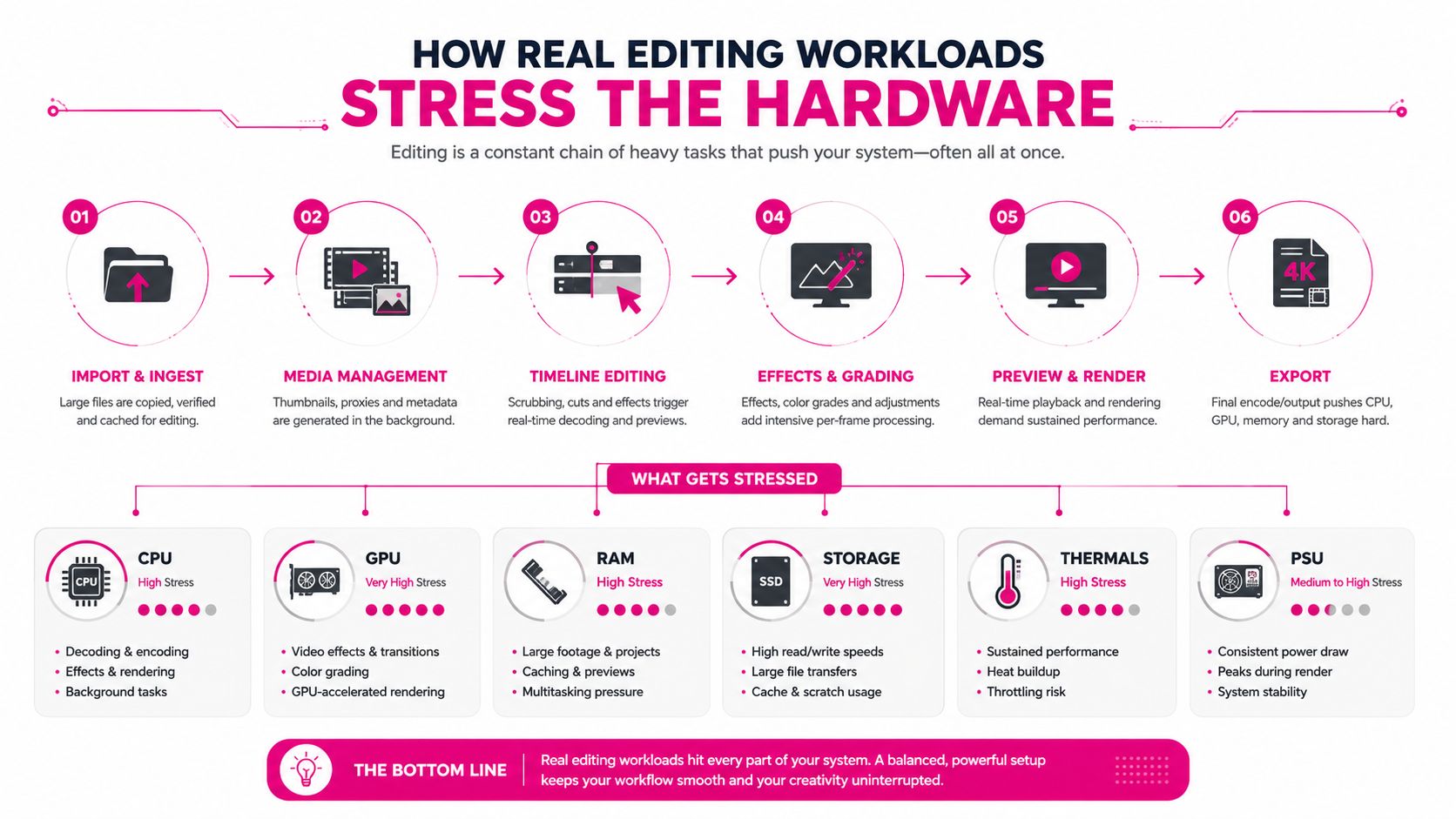
How Real Editing Workloads Stress the Hardware
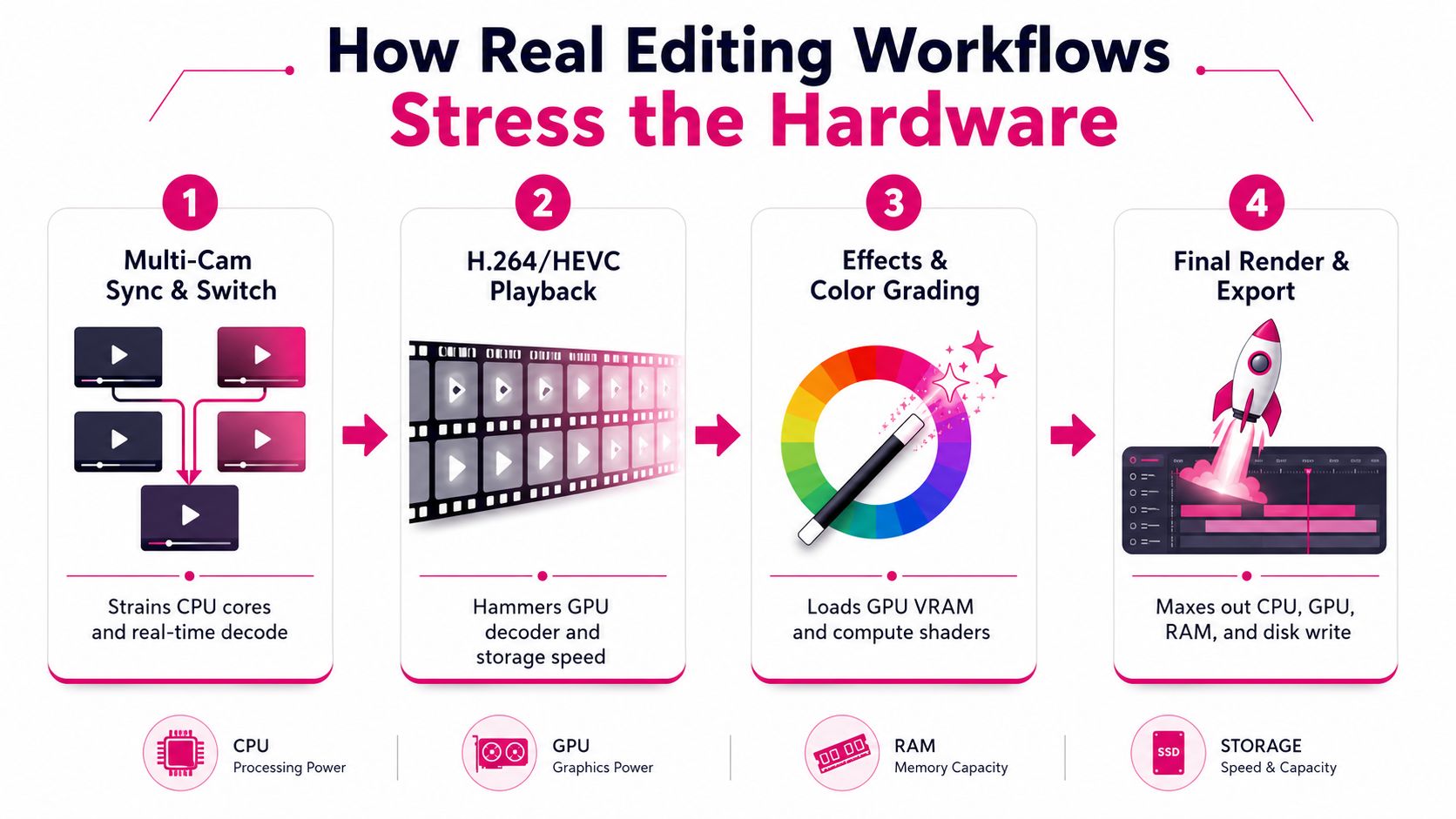
Multi-cam, playback, and codec strain
Multi-cam work is where the spec sheet gets exposed. Stacked angles force the CPU to stay organized while the system keeps audio sync, switches sources, and preserves the original sequence structure for later refinement. Editors in real workflow discussions focus on stacked or nested multicams, original synced sequences, and cleaning up selects before the final pass, because that's where the machine either holds together or gets in the way. The difference between “it plays” and “it's comfortable to edit” shows up fast here.
H.264 and HEVC playback hit harder than many buyers expect because decoding can become the bottleneck before the rest of the system looks tired. Proxy workflows help, but the machine still has to juggle the media, the preview files, and whatever else you leave open while editing. That's why storage speed and decoding support matter, not just raw CPU labels.
RAW grading and motion-heavy timelines
RAW grading moves more of the load into memory and GPU space. More RAM helps reduce caching pressure, which keeps playback from stuttering when multiple streams, effects, and background apps compete for working space. Digital Filmmaker's RAM guidance makes that memory pressure point clear.
Motion graphics and timeline effects are another stress test entirely. The GPU starts doing more of the visible work, especially when color, text animation, and layered effects are stacked together. This is why I tell editors not to buy for the worst-case fantasy project. Buy for the jobs you routinely edit. If you never touch heavy compositing, you don't need to spend like a finishing house.
Tiered Desktop Builds and Laptop Options Matched to Use Case
The builds that actually map to work
If you cut mostly straightforward 4K, the Essential 4K Build should center on 6 to 8 CPU cores, 32 GB RAM, and 12 GB to 16 GB VRAM. That's enough for a creator who edits interviews, talking-head content, and standard b-roll without constant effects abuse. For Pro Multi-Cam Build, move to 8 to 12 cores, 64 GB RAM, and a stronger SSD layout, because live switching and stacked angles punish weak memory and weak storage discipline. For VFX and Color Suite, I'd keep the CPU strong but push GPU memory and RAM higher, because effects work is where headroom pays off.
On the laptop side, a portable 1080p/4K hybrid should be treated as a travel machine, not your main finishing rig. It's fine for assembly edits, selects, and moderate 4K work if you accept its limits. A mobile workstation is the better pick if you need to stay on the road and still handle larger timelines, but it still won't match a properly cooled desktop for long exports and sustained grades.
If you're comparing editing automation or batch workflows alongside your ingest process, the practical notes in yt-dlp for video download automation are worth a look, because your media pipeline affects how much machine you really need.
Build comparison
| Build | CPU Cores | GPU VRAM | RAM | Storage | Best For |
|---|---|---|---|---|---|
| Essential 4K Build | 6 to 8 | 12 GB to 16 GB | 32 GB | 1 TB NVMe SSD, ideally split from cache | Solo 4K creators, interviews, YouTube edits |
| Pro Multi-Cam Build | 8 to 12 | 16 GB or more | 64 GB | Multi-drive NVMe layout | Events, multicam timelines, heavier timelines |
| VFX and Color Suite | 8 to 12 | 24 GB to 32 GB | 64 GB to 128 GB | Fast NVMe media plus dedicated cache drive | Compositing, grading, layered motion work |
| Portable 1080p/4K Hybrid | 6 to 8 | 12 GB or more | 32 GB | 1 TB NVMe SSD | Travel edits, assembly cuts, short-form |
| Mobile Workstation | 8 to 12 | 16 GB or more | 64 GB | Larger NVMe configuration | On-location editing, more demanding mobile work |
The mistake most buyers make is reaching for the highest tier because it sounds safer. It isn't. Choose the tier that matches the most demanding job you do weekly, not the project you hope will show up once a quarter.
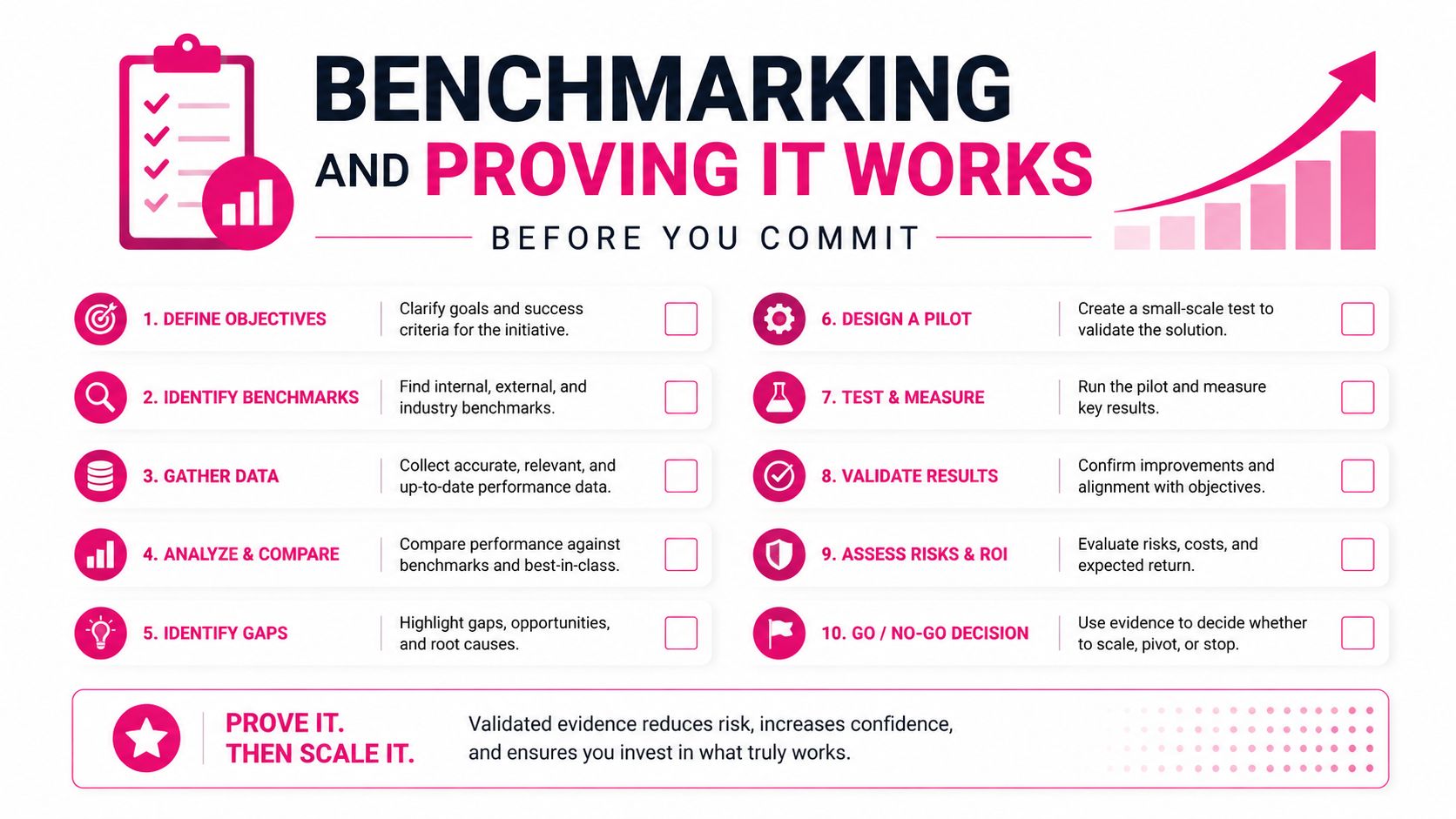
Benchmarking and Proving It Works Before You Commit
Test the machine with your actual footage
Specs don't prove anything until your real media hits the timeline. Run a 90-minute test on the exact kinds of files you use, starting with a proxy workflow export, then a multicam scrub test, then RAW grading, then a final H.265 deliverable render. If the system gets sluggish before the last step, you've found the weak point before you handed over money.
Good behavior is simple to spot. Proxy playback should stay responsive. A stacked multicam with LUTs applied should still feel usable, not fragile. RAW grading should not force the timeline into constant hesitation every time you move the playhead. Final export should hold consistent performance instead of crashing into unexplained throttling.
Consumer GPU or professional card
Buyers often overthink branding. A consumer GPU with strong benchmark numbers can be a great fit if the drivers behave and your software stack stays stable. A professional card makes more sense when driver stability and predictability matter more than squeezing every last frame from a synthetic test.
Trust vendor benchmarks only when they mirror your work. If the vendor's test uses different codecs, lighter timelines, or export settings you never touch, treat it as marketing, not proof. The answer is in the scrub test, the export test, and the way the machine behaves when multiple apps are open at once.
If a system only feels fast during a synthetic benchmark, it's not a reliable editing machine.
Peripherals, Software, and the Hidden Costs of Owning a Workstation
The tower is only part of the bill. A real editing setup usually needs a calibrated monitor, sometimes a second display, scratch disk expansion, backup storage, a UPS, audio monitoring gear, and maybe a capture card or RAID box depending on the work. If color matters, an uncalibrated panel will wreck the result faster than a weak GPU ever could.
That's why the total stack cost has to be treated as a multi-year ownership decision, not a one-time shopping cart. The hidden part is software too. If you're comparing workstation ownership against editing workflow needs, the software stack often matters as much as the box itself, and the overview at best professional video editing software is a useful reminder that tools and workflow belong in the same budget conversation.
Where skimping shows up on screen
- Monitor quality: Bad color decisions start here. If the display lies, the grade lies.
- Scratch and backup storage: Slow, cramped, or single-point storage turns every project into a risk.
- Power protection: A workstation without proper power protection is one outage away from pain.
- Audio monitoring: If you can't hear noise, clipping, or room tone, you'll ship bad sound.
Don't buy the fastest computer and then attach it to a weak screen. That's backwards spending.
A realistic creator stack can get expensive once you add the surrounding gear, especially if you need two screens, clean storage, and reliable backups. For many working creators, that's the moment the workstation stops looking like an obvious purchase and starts looking like one possible route among several.
When Outsourcing Editing Beats Owning the Hardware
Owning the hardware only makes sense when the workload stays high enough to justify it. If you're not cutting constantly, the amortized cost of a $3,500 to $6,000 machine, plus software seats, plus your own time spent maintaining the setup, can be harder to defend than paying for editing services. That's not a cop-out. It's just better business for a lot of creators.
Outsourcing wins in a few very specific situations. You need predictable turnaround. You need consistent brand treatment across projects. You need motion graphics or color work that would otherwise push you into specialist hiring. You also want a cleaner review cycle, because timestamped notes and a client portal cut down on the “fix this, no that” chaos that slows publishing.
Why the service model can beat a workstation
Professional editing services give you a different cost structure. Instead of tying up cash in hardware, you buy output. That can make sense when your editing volume is uneven, when you need fast first drafts, or when your team cares more about shipping than fiddling with storage layouts and GPU choices.
Your Video Editor is a good example of that model. It offers per-video pricing, bulk credit packages that do not expire, 3 to 5 day first-draft turnaround for long-form, 24 to 72 hours for short-form, unlimited revisions, timestamped feedback in a client portal, and a premium asset library included. It also covers the work many in-house rigs are built to support, like multicam editing, color correction, audio cleanup, motion graphics, and 4K exports. Their service page for YouTube video editing shows how the workflow is organized around actual deliverables, not just raw software output.
When outsourcing makes the most sense
- You publish consistently and can't afford delays.
- Your edits need motion, polish, or cleanup you don't want to learn in-house.
- You want a cost that's easier to forecast than owning a workstation.
- You care more about release cadence than about building a hardware project.
The trade-off is simple. A workstation gives you control. Outsourcing gives you speed, predictability, and fewer technical distractions. If you're a creator whose weekly output matters more than hands-on editing, outsourcing is not a compromise. It's the smarter setup.
Making the Final Buy, Upgrade, or Outsource Decision
Use this five-minute check before you spend anything.
- If you edit 4K weekly and your machine already has an SSD, start with RAM.
- If multicam or RAW grading is part of your normal workload, buy for 64 GB RAM and stronger GPU headroom.
- If you mainly cut simple content and your exports are fine, upgrade storage before replacing the whole computer.
- If your biggest problem is turnaround, not hardware limits, outsource the edit.
- If your workflow changes every month, don't overbuild for a fantasy use case.
The rule is straightforward. Buy when your weekly work needs sustained power. Upgrade when the box is close but bottlenecked by memory or storage. Outsource when the business problem is time, consistency, or specialist polish, not raw compute.
For a deeper pricing comparison, the breakdown at video editing cost is the right next check if you're weighing ownership against service spend. If you're a solo 4K creator, an essential build is enough. If you're a multicam or VFX-heavy editor, step up deliberately. If you're short-form or turnaround-driven, I'd look hard at outsourcing before I'd sink money into a new tower.
If you want the editing work handled instead of buying another workstation, Your Video Editor can take on long-form, short-form, multicam, and branded deliverables with a workflow built for fast review and clear revisions. If this guide helped you decide that hardware isn't the best use of your budget, visit the site and compare the per-video and credit options against the cost of building your own setup.