As a YouTube creator, time is your most valuable asset. Between filming, editing, uploading, and analyzing performance, every second counts. That’s where YouTube keyboard shortcuts come in as your secret weapon for streamlining workflows and boosting productivity.
These shortcuts let you navigate YouTube Studio, preview videos, and manage tasks with lightning speed, cutting down on tedious mouse clicks.
Whether you’re fine-tuning edits or diving into analytics, mastering these shortcuts can save hours and keep your focus sharp. This guide delivers the complete list of YouTube keyboard shortcuts tailored for creators, packed with practical use cases and advanced tips to elevate your game.
From playback tricks to Studio navigation hacks, we’ve got you covered with everything you need to work smarter, not harder.
These are shortcuts that video editors at professional video editing services like Your Video Editor use to streamline their editing and meet your quick turnaround requests.
Ready to transform your creative process? Let’s dive into the ultimate shortcut list designed to help you thrive as a YouTube creator.
Want to take your videos to the next level?
Why Keyboard Shortcuts Are a Game-Changer For Creators?

Some people like to go the long way, so it’s always a valid question to ask what all the fuss is about. And why are keyboard shortcuts important to creators on YouTube?
YouTube creators juggle a whirlwind of tasks, we’re talking filming, editing, uploading, optimizing metadata, responding to comments, and analyzing performance metrics. Each task demands focus, and switching between tools or navigating YouTube Studio’s interface with a mouse can slow you down.
Keyboard shortcuts are a game-changer, slashing time spent on repetitive actions and keeping your workflow seamless. For example, imagine editing a video and using (J) to rewind 10 seconds or (,) to check frame-by-frame transitions without lifting your hands from the keyboard.
Shortcuts minimize distractions, letting you stay in the creative zone. Over weeks, the seconds saved add up to hours, time you can reinvest in brainstorming new content or engaging with your audience.
By mastering shortcuts, you gain efficiency, precision, and control, empowering you to focus on what matters most: creating videos that captivate and grow your channel.
How To Access The Official YouTube Keyboard Shortcut List?
Yes, YouTube has an official keyboard shortcut list that you can access anytime. Many creators do not know this and keep wasting time and effort doing things manually. Here is a simple process to access this shortcut list on YouTube:
- Sign in to YouTube or YouTube Studio.
- On any YouTube page, simultaneously press the Shift key and question mark (?) keys.
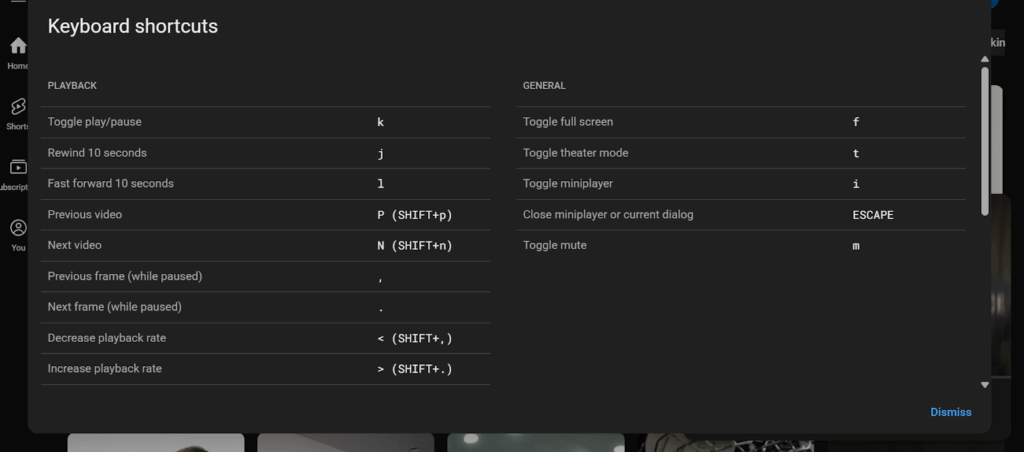
Bear in mind that these shortcuts vary based on the operating system. IOS and Windows may have different shortcuts for the same feature. Also, this official list does not contain all the shortcuts and that is exactly why you have this guide. To provide a comprehensive YouTube keyboard shortcut.
The Complete List of YouTube Keyboard Shortcuts For Creators
Ready to see every YouTube keyboard shortcut for creators that matters? We’ve got you in this section.
Playback Shortcuts
Here you find shortcuts to help with quick playbacks during editing. The shortcuts in this section save a lot of time.
- K or Spacebar: Toggle play/pause.
- Use Case: Pause a video preview to check audio sync during editing.
- J: Rewind 10 seconds.
- Use Case: Review a specific segment repeatedly to ensure smooth transitions.
- L: Fast forward 10 seconds.
- Use Case: Skip intros or outros when checking video pacing.
- Left Arrow: Seek backward 5 seconds.
- Use Case: Fine-tune edits by stepping back to review short clips.
- Right Arrow: Seek forward 5 seconds.
- Use Case: Move forward to check continuity in dialogue or visuals.
- 0–9: Jump to 0–90% of the video (e.g., 1 for 10%, 5 for 50%).
- Use Case: Navigate to specific chapters or timestamps for quick quality checks.
- , (Comma): Move back one frame (when paused).
- Use Case: Inspect frame-by-frame for precise cuts or visual effects.
- . (Period): Move forward one frame (when paused).
- Use Case: Verify motion blur or animation accuracy in slow-motion segments.
- Home: Go to the beginning of the video.
- Use Case: Restart a video to review the intro’s impact.
- End: Go to the end of the video.
- Use Case: Check the outro or end screen elements for engagement.
Navigation Shortcuts
Moving across videos gets easier with this set of shortcuts.
- Shift + N: Next video in a playlist or suggested videos.
- Use Case: Cycle through a series in YouTube Studio to verify playlist order.
- Shift + P: Previous video in a playlist or suggested videos.
- Use Case: Review older uploads in a playlist for consistency.
- /: Focus the search bar.
- Use Case: Quickly search analytics, comments, or videos without using the mouse.
- Shift + ?: Open the keyboard shortcuts menu.
- Use Case: Access a quick reference during a busy editing session.
Video Settings Shortcuts
Now to the video itself. Here are shortcuts to use when navigating your video. Perfect for previewing your videos and verifying effectiveness.
- C: Toggle captions on/off.
- Use Case: Verify subtitle accuracy or timing during a preview.
- M: Mute/unmute audio.
- Use Case: Check audio levels without background distractions.
- F: Toggle fullscreen mode.
- Use Case: Preview your video as viewers will see it for a final quality check.
- T: Toggle theater mode.
- Use Case: Adjust the viewing area to take notes while reviewing analytics.
- O (the letter o): Change subtitle brightness.
- Use Case: Verify subtitle visibility.
- W: Enable and adjust background transparency of captions.
- Use Case: Verify and improve subtitle visibility during preview.
- (-) Minus key: Decrease caption font.
- Use Case: Adjust subtitle font so it does not block too much of the screen content.
- (+) Plus key: Increase caption font.
- Use Case: Adjust subtitle font so it is easily readable.
- Escape: Exit full screen mode.
- Use Case: Return to YouTube Studio after checking a video in full screen.
Playback Speed Shortcuts
Get across videos faster using these speed shortcuts.
- Shift + >: Increase playback speed (e.g., 1x to 1.25x).
- Use Case: Speed through long videos to review content structure quickly.
- Shift + <: Decrease playback speed (e.g., 1x to 0.75x).
- Use Case: Analyze slow-motion effects or detailed animations.
- Shift + .: Increase playback speed (alternative).
- Use Case: Similar to Shift + >, useful for faster navigation on some keyboards.
- Shift + ,: Decrease playback speed (alternative).
- Use Case: Similar to Shift + <, handy for precise slowdowns.
Advanced Creator Shortcuts
Here are some more advanced tips across different uses that go beyond the basic shortcuts:
- Up Arrow: Increase volume by 5%.
- Use Case: Adjust audio during playback to catch low-volume issues.
- Down Arrow: Decrease volume by 5%.
- Use Case: Lower volume to focus on visual elements during review.
- Tab: Cycle through interactive elements (e.g., buttons, links).
- Use Case: Navigate YouTube Studio’s interface to edit metadata or settings.
- Shift + Tab: Cycle backward through interactive elements.
- Use Case: Backtrack to correct a field in YouTube Studio’s upload form.
Additional Notes
Context matters for most of these shortcuts and usage on YouTube. So here are notes to understand your shortcuts:
- Context Matters: Some shortcuts (e.g., Shift + N, Shift + P) require specific contexts, like being in a playlist or YouTube Studio.
- Browser/OS Variations: Shortcuts may differ slightly (e.g., Cmd vs. Ctrl on Mac). Test it on your setup for accuracy.
- Hidden Gems: Not all shortcuts are listed in YouTube’s menu (Shift + ?). This guide includes lesser-known ones for creators, sourced from extensive research and creator workflows.
- Pro Tip: Combine shortcuts for efficiency, like using 0–9 to jump to a section and C to check captions simultaneously.
Advanced Tips For Using Shortcuts In Your Workflow
It’s not just about knowing YouTube shortcuts but also using them effectively. Knowing when to use a shortcut or a combination of shortcuts can improve your workflow tremendously. That is why we have this advanced tips section, detailing when to use some of the most popular shortcuts and best combinations to explore.
Customizing Your Setup
You can make using shortcuts on YouTube easier by customizing the setup. Whether you’re using tools or simply writing them down. Here are some excellent ways to make shortcuts that suit your needs:
- Create a Cheat Sheet: Write down your top 10 shortcuts (e.g., K, J, L, /) on a sticky note or digital doc for quick reference. Update it as you master more.
- Use Browser Extensions: Install tools like “Enhancer for YouTube” to add custom shortcuts or tweak existing ones for your needs.
- Explore Key Bindings: On Windows, use AutoHotkey, or on Mac, use Karabiner to remap keys for shortcuts that feel more intuitive.
Workflow Integration
Want to easily integrate these shortcuts into your workflow? Here are a few ways to go about it:
- Video Editing: Use (,/.) for frame-by-frame navigation to perfect cuts and J/L to review segments quickly, saving time in post-production.
- YouTube Studio Tasks: Combine / (search) with Shift + N/P to jump between videos when updating metadata or checking analytics trends.
- Bulk Uploads: Pair shortcuts with YouTube Studio’s bulk editing tools. Use Tab/Shift + Tab to navigate fields rapidly when tagging or categorizing videos.
Time-Saving Combos
One of the primary advantages of YouTube shortcuts is to save time. These combos here are specifically designed to do that, so you can have more time to create content.
- Jump and Check: Use 0–9 to skip to video sections and C to toggle captions for simultaneous timing checks.
- Speed Review: Press Shift + > to speed up playback while scanning long videos for pacing issues.
- Navigation Flow: Chain / (search) with Shift + N to move through playlists or analytics without touching the mouse.
Common Mistakes And How To Avoid Them

YouTube shortcuts will make your life easier as a creator on the platform. It ensures speed, efficiency, and quality, but you may also have to deal with some pitfalls that can slow your progress. Here are common mistakes creators make and how to avoid them:
1. Trying to Learn All Shortcuts at Once
It can be overwhelming memorizing dozens of shortcuts. This leads to frustration and abandonment.
Solution: Start with 5–10 high-impact shortcuts, like K (play/pause), J/L (rewind/fast forward), / (search), and C (captions). Master these before adding more.
2. Ignoring Browser or OS Differences
Shortcuts may vary (like Cmd on Mac vs. Ctrl on Windows) or conflict with browser settings, causing unexpected behavior.
Solution: Test shortcuts on your specific setup. Use Incognito mode to rule out extension interference and note Mac/Windows variations.
3. Not Practicing in Real Tasks
Memorizing shortcuts without applying them leads to forgetting them quickly.
Solution: Integrate shortcuts into daily tasks, like using (,/.) for frame-by-frame editing or Shift + N for playlist navigation, to build muscle memory.
4. Overlooking Shortcut Context
Some shortcuts (like Shift + P for previous video) only work in specific scenarios, like playlists, so it can be confusing when you try them in a different situation.
Solution: Understand context requirements. Refer to YouTube’s shortcut menu (Shift + ?) or this guide to clarify when shortcuts apply.
Summary
Mastering YouTube keyboard shortcuts saves creators time and boosts efficiency, so you can focus on crafting amazing content. From playback tricks like K for play/pause to Studio navigation with/for search, these shortcuts streamline editing, analytics, and more. This way, you can focus on making videos that rank on YouTube.
Start with a few high-impact ones and practice them in your daily tasks to make them second nature. It also shares advanced tips, like combining shortcuts for faster workflows, and pitfalls to avoid, such as learning too many at once.
If editing feels overwhelming, you can leave it to Your Video Editor, a professional service with editors who know these shortcuts and deliver polished videos tailored to your vision. Check out Your Video Editor to elevate your videos and explore our other posts for more creator tips.