You upload a strong video, watch the first burst of comments come in, then the channel goes quiet for days. Sometimes weeks. The next upload has to rebuild momentum from scratch, and you end up treating every video like a cold start.
That gap is where most creators lose more than they realize. Not because the audience disappeared, but because there was nothing for them to interact with between uploads. YouTube Community posts fill that gap. Used well, they keep your channel present in the subscriber experience without forcing you to produce another full video.
The mistake is treating them like a notice board. “New video out now.” “Thanks for watching.” “Uploading tomorrow.” That's fine, but it's not where the feature becomes valuable. The main upside is that Community posts let you test ideas, collect reactions, choose creative directions, and feed that information back into production before your editor spends hours cutting a video that the audience never really wanted.
That matters even more if you're trying to run your channel like a real operation instead of a solo scramble. If your broader content workflow still depends on the creator doing everything, it helps to revisit what a content creator actually handles day to day. Community posting fits best when it becomes part of the system, not another loose task sitting on your to-do list.
Table of Contents
- Introduction Why Your Channel Needs More Than Just Videos
- What Are Community Posts and Who Can Use Them
- How to Create and Schedule Your First Community Post
- Content Ideas and Best Practices for High Engagement
- How to Measure the Success of Your Community Posts
- Integrating Posts into Your Video Production Workflow
- Conclusion Turn Engagement into Sustainable Growth
Introduction Why Your Channel Needs More Than Just Videos
A YouTube channel that only speaks when a video goes live usually feels more fragile than the creator realizes. The audience may like the content, but the relationship stays transactional. View, maybe comment, then wait.
Community posts change that rhythm. They give you a lighter format for staying visible, gathering reactions, and keeping context alive between uploads. That matters for any creator who has a real production process, especially when scripting, shooting, revision rounds, and editing already stretch the calendar.
The cost of silence between uploads
When a channel goes quiet, you lose easy feedback loops. You stop hearing what people are curious about. You stop seeing which angle gets a fast reaction. You stop noticing which thumbnail concept people gravitate toward before it becomes locked into the final upload.
That silence also makes production less efficient. If you script in isolation, edit in isolation, and publish in isolation, you're relying on instinct alone. Instinct matters, but it gets stronger when the audience gives you signals before the final cut.
Community posts work best when you stop asking, “What should I announce?” and start asking, “What can I learn before I publish the next video?”
Posts create a bridge, not extra busywork
Creators often resist the feature because it sounds like another obligation. In practice, the strongest use case is simpler. Take assets you're already producing, draft a post around them, and use replies or poll results to shape the next move.
That could mean posting a still from a rough cut and asking which framing feels stronger. It could mean turning a script hook into a poll. It could mean pulling a question from your audience before you record your next talking-head segment.
The channels that get the most out of YouTube Community posts don't treat them as separate from video production. They treat them as the front end of it.
What Are Community Posts and Who Can Use Them
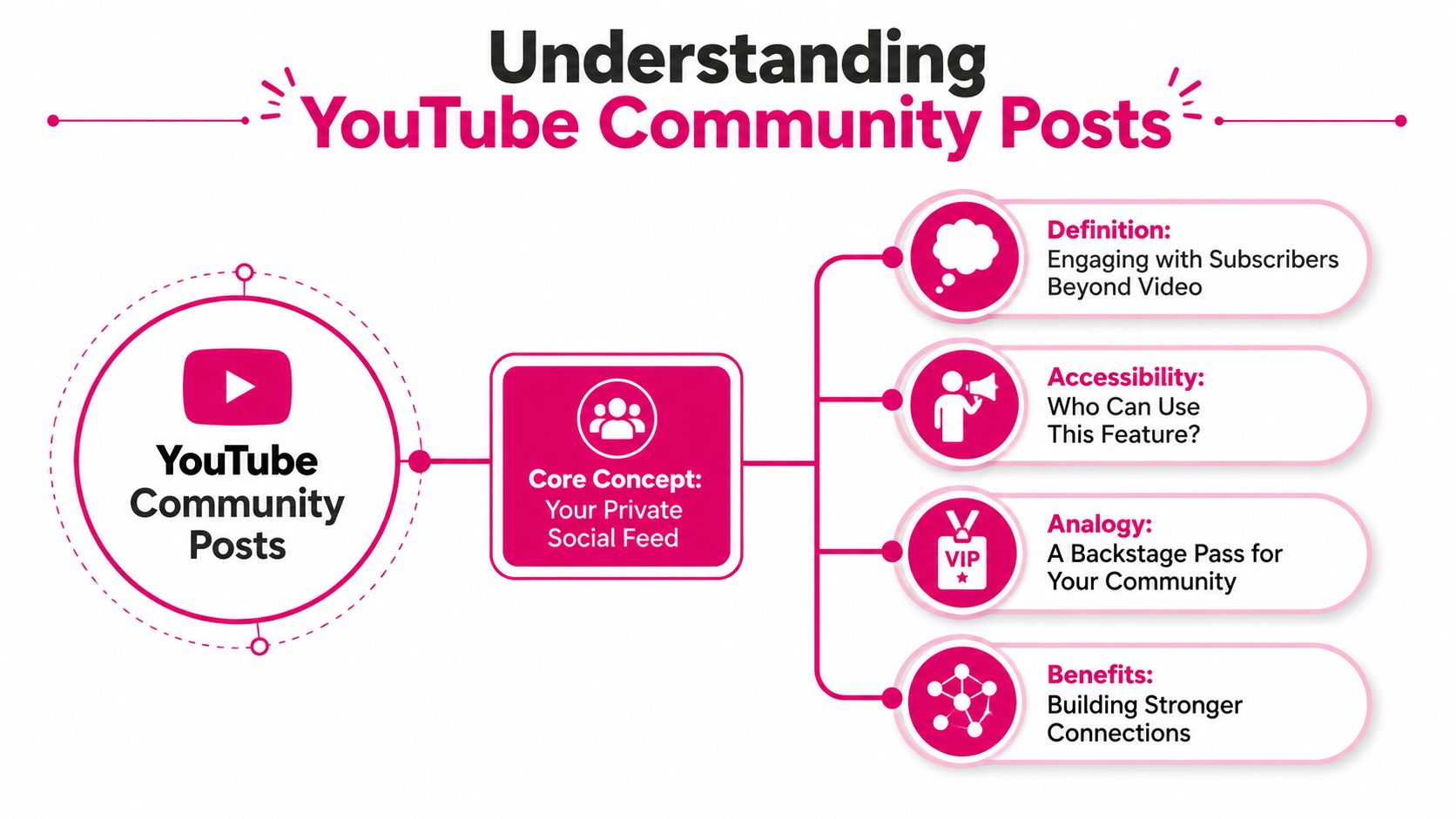
Community posts are YouTube's built-in way to publish non-video updates directly on your channel. Think of them as a private social feed for your subscribers and returning viewers. Instead of waiting for your next upload, you can post text, polls, images, or links to existing videos and Shorts.
Think of them as a subscriber feed
The easiest mental model is this. Your videos are the main episodes. Community posts are the in-between moments that keep the audience connected to the story of your channel.
That makes them useful for more than updates. You can float a concept, ask for preferences, show behind-the-scenes progress, or direct attention back to an older video that still matters. They feel lighter than a full upload, so people are often more willing to react quickly.
Eligibility changed in a big way
This feature used to be gated behind subscriber milestones, which made it less useful for smaller channels. That changed when YouTube removed the historical subscriber threshold in 2023, opening the Community tab to channels that have Advanced features enabled, no active Community Guidelines strikes, and are not set to Made for Kids, as noted in this explanation of the Community tab update.
For small and mid-size creators, that shift matters more than most guides acknowledge. You no longer have to wait until the channel looks established before you start building habits of interaction. You can begin using the tool while the audience is still forming.
Practical rule: If your channel has access, don't wait until you “have a community” to use Community posts. Posting is part of how you build one.
The formats you can publish
YouTube Community posts support several formats, and each one serves a different purpose. Based on the feature breakdown in this guide to Community post formats, here are the main options:
- Text posts let you write up to 4,096 characters. They're useful for context, questions, mini-stories, or setup before linking a video.
- Image posts support a single upload. They work well for thumbnail tests, behind-the-scenes stills, and visual announcements.
- Multi-image posts let you publish up to 5 swipeable images. This format fits tutorials, before-and-after sequences, or storyboard-style updates.
- Polls allow up to 5 options and run for a fixed 7-day duration. They tend to get strong interaction because the action is quick.
- Video posts link directly to an existing YouTube video or Short, making them useful for resurfacing older content with fresh framing.
The biggest trade-off is friction. Polls ask for one tap. Comments ask for thought and typing. That doesn't make comments less valuable, but it does mean you should choose the format based on the signal you want.
How to Create and Schedule Your First Community Post
The posting interface is straightforward. Most creators don't struggle with finding the button. They struggle with building a repeatable process so posts don't happen only when inspiration strikes.
The basic publishing flow
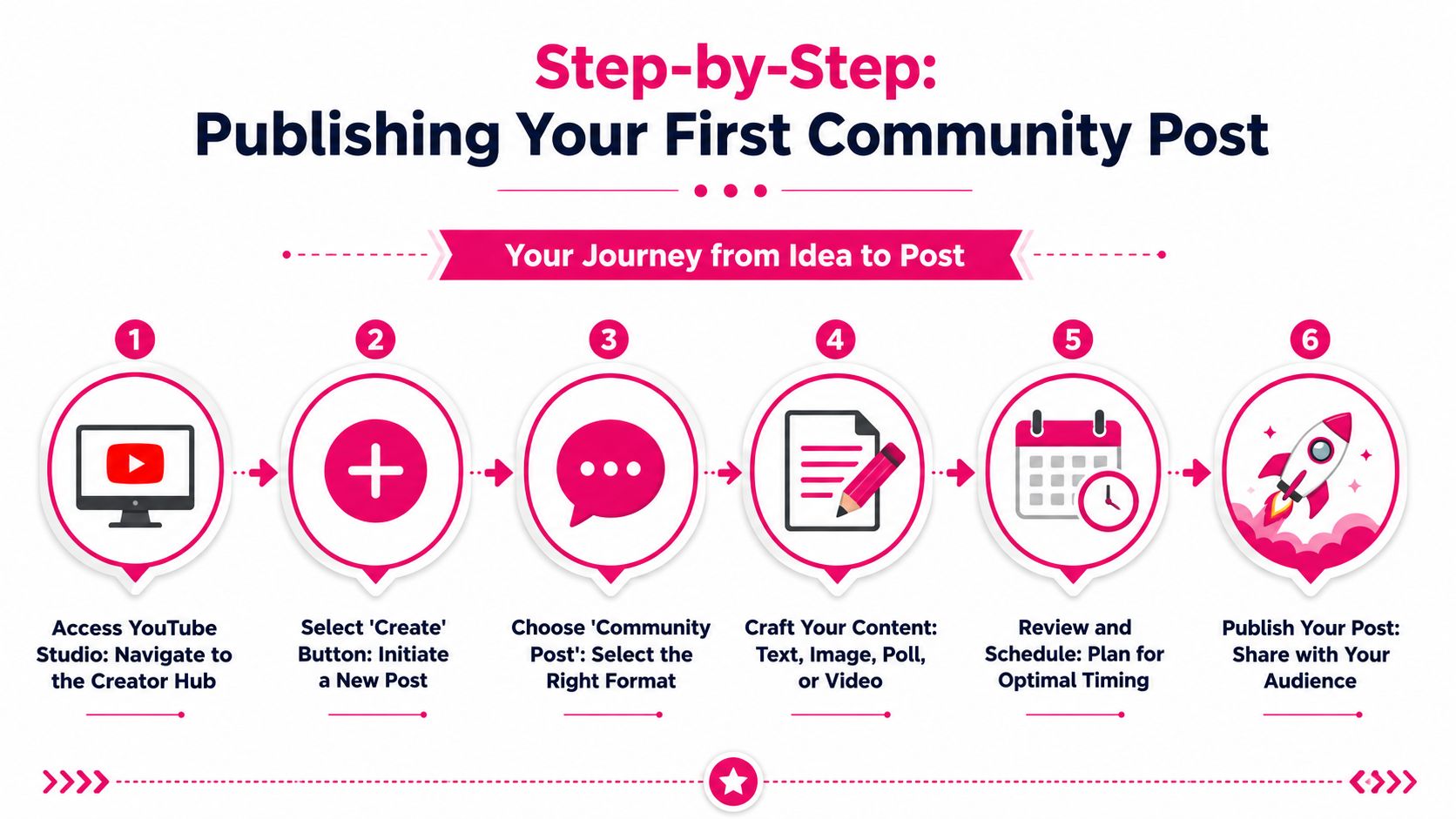
Inside YouTube Studio, go to Create, choose a Community post, then select the format you want to publish. From there, write the text, attach the image or video if needed, or build the poll and review the post before publishing.
A simple first post is often better than an overbuilt one. Ask one direct question. Share one image. Test one thumbnail. If the post needs too much explanation, it probably belongs in a video instead.
If you're also trying to time your uploads and supporting posts more deliberately, it helps to compare that schedule against your broader best time to post on YouTube strategy. Posts don't need to follow the exact same timing logic as videos, but they shouldn't be random either.
A visual walkthrough can help if you're setting this up for the first time:
Specs worth getting right
The technical side is simple, but small mistakes can make posts look sloppy. Based on the image and format specs summarized in this community discussion about Community post image requirements, here are the key details to keep nearby.
| Post Type | Key Specification | Recommended Use Case |
|---|---|---|
| Text | Up to 4,096 characters | Questions, updates, story-driven prompts |
| Image | Recommended 1080 x 1080 pixels, max 16 MB | Thumbnail tests, announcements, visual teasers |
| Landscape image | 1200 x 675 pixels supported | Wider compositions or repurposed banner-style art |
| Multi-image | Up to 5 images | Steps, comparisons, before-and-after sequences |
| Poll | Up to 5 options, fixed 7-day duration | Topic voting, thumbnail choice, preference checks |
| Video link | Links to existing YouTube videos or Shorts | Resurfacing uploads with a new angle |
Scheduling helps more than posting fast
The channels that post consistently usually don't create everything live. They batch. A creator or manager drafts several post ideas while reviewing the monthly content plan, then schedules them around filming, editing, and upload days.
That solves a common problem. When production gets busy, Community posts are the first thing to disappear. Scheduling keeps them active when your attention is somewhere else, which is usually when you need them most.
A practical cadence is to match posts to production moments, not just publish dates. One before scripting. One during editing. One after upload. The point isn't volume. It's continuity.
Content Ideas and Best Practices for High Engagement
Most creators start with promotion because it's obvious. New video out. Go watch. That has a place, but it's the least interesting use of the feature. The stronger move is to give subscribers something to do, not just something to click.
Use posts for promotion, but don't stop there
The easiest content buckets are still useful when handled well:
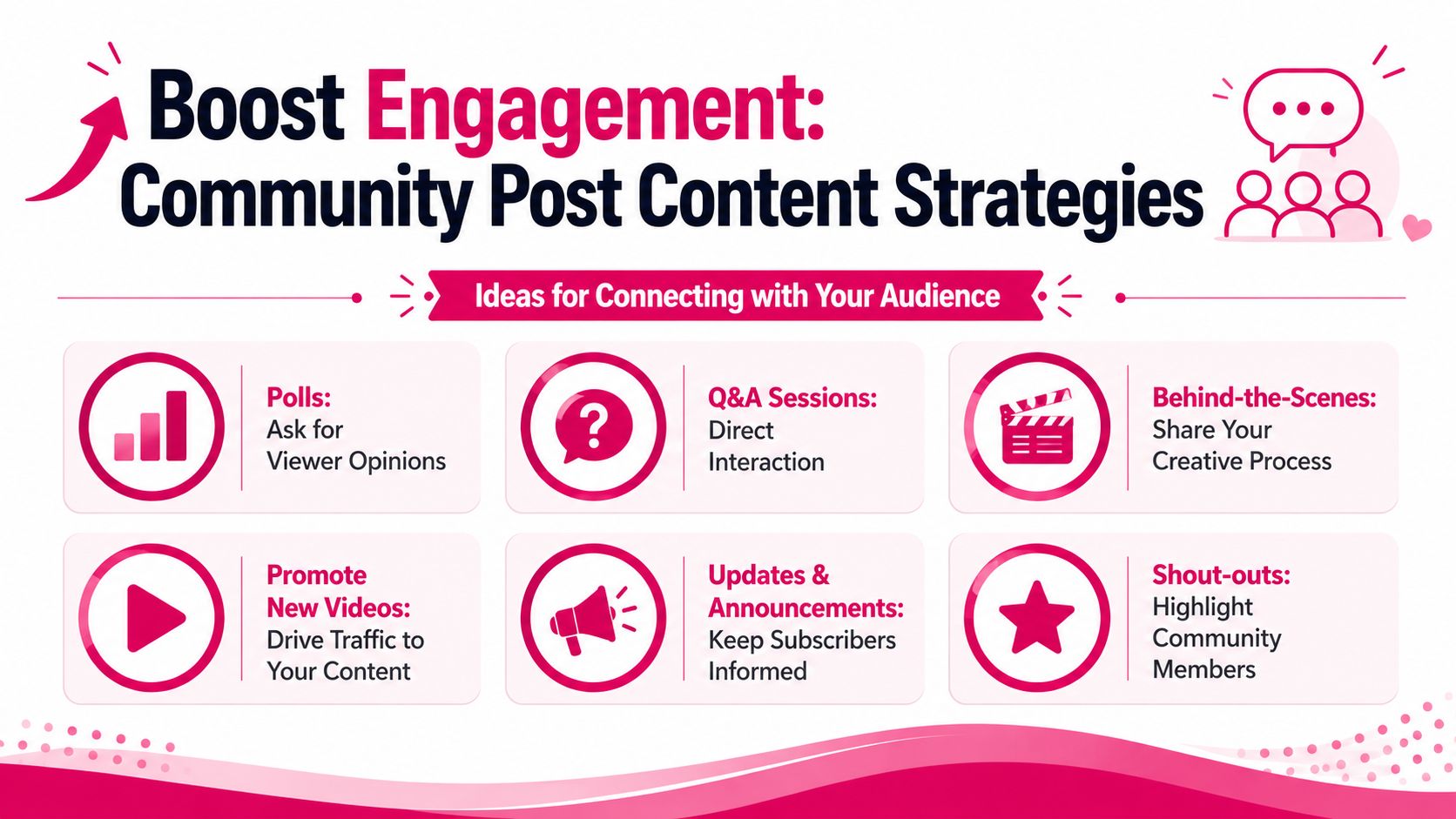
- Video promotion with context. Don't just paste the upload. Give viewers a reason to care. Mention the problem it solves, the debate inside it, or the one idea you want feedback on.
- Behind-the-scenes updates. Show the set, a frame from the timeline, a script excerpt, or a production dilemma you're deciding on.
- Q&A prompts. Ask what people are struggling with in your niche. This often produces stronger future topics than brainstorming alone.
- Community spotlight. Feature a viewer question, challenge, or response that deserves more attention.
What doesn't work as well is repetitive self-promotion without texture. If every post says some version of “watch now,” people learn that the tab has nothing new to offer.
Turn the Community tab into an audience research lab
YouTube Community posts become far more valuable than most creators use them for. Instead of waiting until a video is finished, use posts to validate the inputs.
The audience research angle is especially useful for:
- Topic selection
- Hook testing
- Thumbnail preference
- Series direction
- Open questions that reveal language viewers use
The reason polls are so useful is practical, not mysterious. They reduce friction. A single tap is easier than writing a comment, which makes them a fast way to test preference before production effort piles up. That low-friction behavior is central to why polls often outperform static formats for fast engagement, as noted earlier in the article.
Ask the audience questions that affect production decisions, not just vanity questions. “Which thumbnail would you click?” is more valuable than “Are you excited?”
The underused move is comparing what people say they want with what they respond to later. If a poll strongly favors one topic, watch how the eventual video performs relative to your usual content mix. Over time, your posts become a working research layer, not just a place for chatter. That audience-research framing is explored in this look at Community posts as a validation tool.
What usually works and what usually falls flat
Some post types regularly create better conversations than others. In practice, these tend to work:
- Choice-based questions because they are easy to answer.
- Specific open-ended prompts such as asking what part of a process viewers find hardest.
- Visual comparisons like two thumbnail options or two edits of the same frame.
- Posts tied to an active production decision because people can feel their input matters.
These usually struggle:
- Vague questions like “What do you think?”
- Promotional posts with no hook
- Too many asks in one post
- Inside-baseball production notes that only make sense to you
A good Community post creates one clear action. Vote. Reply. Choose. React. If the post asks for all of them at once, engagement gets muddy.
How to Measure the Success of Your Community Posts
Most creators either ignore post analytics or overreact to individual posts. Neither helps. You need a simple way to read the signals and decide whether the post gave you useful information.
What to look at inside analytics
YouTube added native analytics for Community posts in YouTube Analytics, giving creators visibility into impressions and engagement for individual posts, with post-level metrics like views, likes, comments, and shares accessible through the Posts area in Studio, as covered by Search Engine Journal's report on the update.
The same report notes broad engagement benchmarks for genuine audiences of 0.5% to 3% for likes relative to subscriber count and 1% to 5% for poll vote participation relative to subscribers. Those ranges aren't a guarantee for any single channel, but they give you a useful reference point.
If you already review channel performance regularly, add Community posts to that routine alongside your broader YouTube analytics review process. Posts shouldn't live in a separate mental box. They influence what you make next.
How to read the signals correctly
A post with solid impressions but weak interaction usually means the packaging was visible but not compelling. The topic may be fine. The framing may be weak. Rewrite the question, shorten the text, or make the visual choice clearer.
A poll with strong participation is often the cleanest signal of immediate audience interest. It doesn't prove the future video will succeed on its own, but it does tell you the idea generated low-friction curiosity.
High impressions tell you YouTube showed the post. High participation tells you viewers cared enough to do something.
Comments deserve a different read. Fewer comments can still be more valuable than lots of votes if the replies contain language, objections, examples, or stories you can use in scripts and edits. That's why qualitative review matters. Not every useful post wins on surface metrics.
Keep a lightweight log. Topic, format, framing, result, takeaway. Over time, you'll notice patterns in what your audience responds to quickly and what only looks interesting from your side of the screen.
Integrating Posts into Your Video Production Workflow
At this juncture, the feature stops being a side tactic and starts becoming operational. If Community posting depends on the creator remembering to do it manually every time, consistency usually collapses under filming, scripting, client work, or revision rounds.
The fix is to connect posts directly to the production calendar.
Build posting into the production calendar
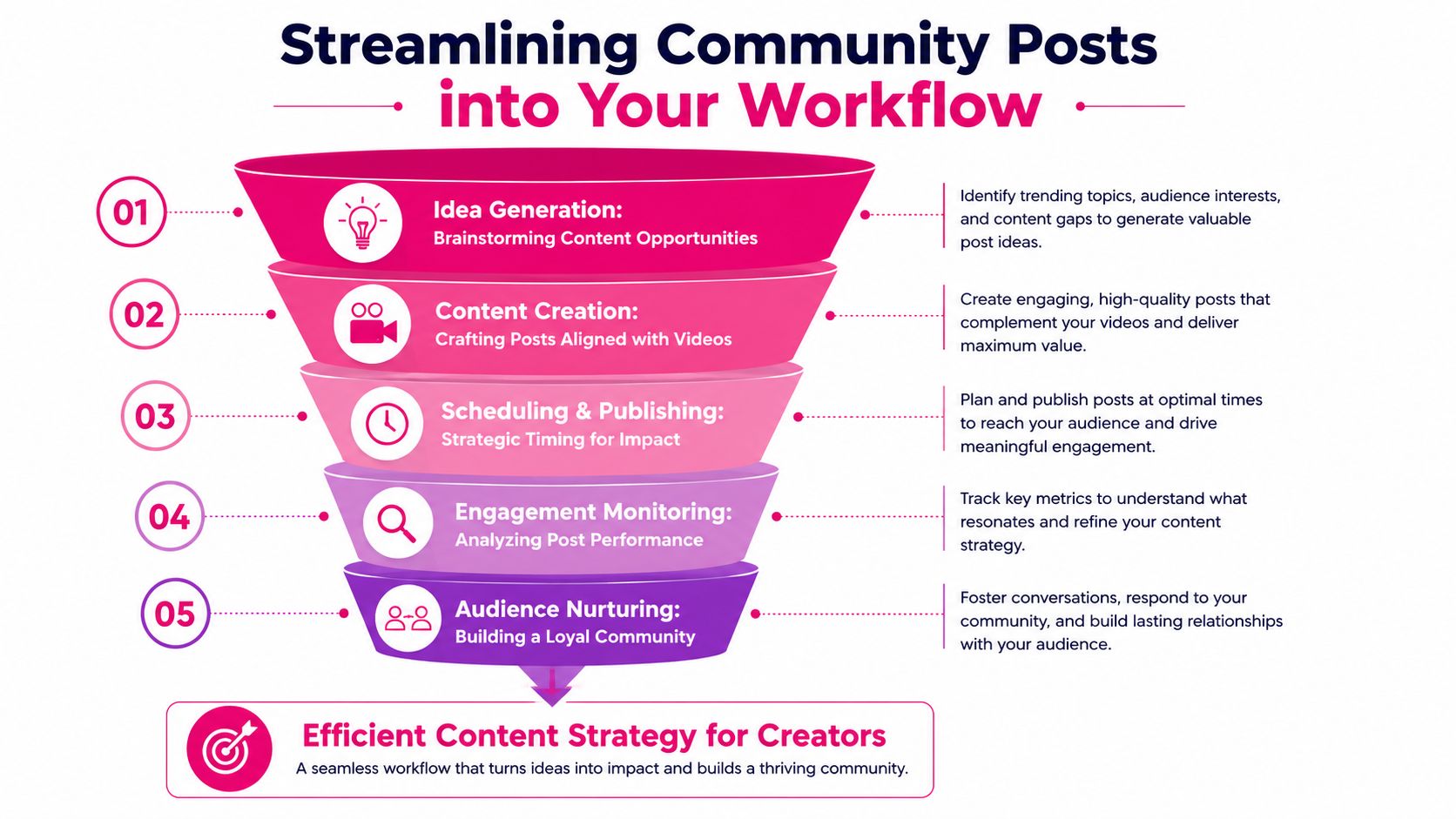
A working system often looks like this:
Pre-production post
Use a poll or short question to test the topic, angle, or thumbnail direction before recording.Mid-production post
Share a frame, setup image, or behind-the-scenes update while the edit is in progress.Launch support post
Publish a post that frames the new video around a specific takeaway or debate, not just the title.Post-launch feedback post
Ask a question that pulls audience reactions you can use for follow-up content.
This structure works because each post has a job. You're not posting to stay busy. You're posting to support a decision, a release, or a feedback loop.
What the editor can own
A good editor or channel support partner can handle more of this than many creators assume.
They can prepare:
- Branded stills pulled from footage for image posts
- Thumbnail variants for poll-based preference testing
- Quote cards based on key moments from the script or edit
- Carousel graphics that break down steps, tools, or lessons from an upcoming video
- Post visuals sized correctly so the creator isn't exporting ad hoc screenshots from the timeline
That matters because Community posts often fail for a boring reason. No one had a clean asset ready when the moment came to publish. If the visual prep sits inside the editing workflow, posting becomes easier to sustain.
The best workflow is the one where the creator approves the idea, not the one where the creator has to build every asset personally.
The post-to-video loop
This is the most underused workflow in the whole feature set. Ask an open-ended question in a Community post, collect the best replies, then feed that material into the next long-form edit.
That could mean:
- animating audience comments as lower-thirds
- using viewer objections as chapter intros
- turning recurring replies into on-screen text callouts
- building a mini Q&A sequence from community responses
- using funny or sharp comments as motion graphic moments inside the edit
This kind of post-to-video process is specifically noted in this discussion of repurposing Community feedback into motion graphics. It's valuable because it turns audience interaction into production material instead of leaving it buried in the post thread.
It also changes how the audience experiences the channel. They aren't just reacting after the fact. They can see their input shape the content itself. That creates stronger continuity than posting another generic announcement ever will.
Conclusion Turn Engagement into Sustainable Growth
YouTube Community posts work best when you stop treating them like filler between uploads. They're a practical tool for staying visible, testing ideas, collecting audience language, and improving what goes into the next edit.
The channels that benefit most build them into the workflow. They plan post formats around production decisions, review the analytics for signals, and turn responses into better videos. That creates consistency without forcing the creator to invent extra content from scratch.
If you want that kind of system without adding more production overhead, Your Video Editor can help turn Community posts into part of a repeatable channel workflow. Their team handles editing, thumbnails, motion graphics, and brand-aligned assets, which makes it easier to prepare post visuals, test creative options, and fold audience feedback back into the next video without slowing down your publishing schedule.