In line with building a successful YouTube channel, your content has to reach the right audience. Getting views is the first step to achieving this. However, many creators struggle with this due to many factors. One of the easiest ways to get more views is by fixing your thumbnail.
When it comes to thumbnails, the focus is usually on the visuals and whether it is captivating enough. While this is important, it is not the full story. With issues like thumbnail dimensions able to affect your click-through rate.
Your thumbnail dimensions on YouTube have to match the standard on the platform for it to be able to pass the message effectively.
Imagine creating and uploading a large thumbnail and then finding out that the title has been cut off. Your CTR will drop even further with the unaligned thumbnail.
That is why we put together this guide, to show the perfect YouTube thumbnail dimension. What thumbnail size is all about and even best practices to ensure you get views.
Want to take your videos to the next level?
What is a YouTube Thumbnail?
A YouTube thumbnail is a small image that represents a video, with details showing what the video is all about. The aim is to highlight the benefits of watching the video, so the intended target can click to watch.
Designers and creators make these thumbnails to fit their content and also make the audience want to watch. You can also use tools like Canva to make thumbnails, but top creators like to use Your Video Editor’s expert thumbnail designers.
Without a fitting thumbnail, your exceptional content doesn’t get the views it deserves. This is why thumbnails are so important for video content.
Understanding YouTube Thumbnail Dimensions
Creating a compelling YouTube thumbnail starts with getting the technical details right. The correct dimensions, aspect ratio, and file specifications ensure your thumbnail looks sharp and professional across all devices.
This section breaks down the official YouTube thumbnail size, aspect ratio considerations, safe zones, and technical requirements to help you design thumbnails that meet platform standards and maximize viewer appeal.
Aspect Ratio and Safe Zones
The 16:9 aspect ratio is critical because it matches the YouTube video player’s dimensions, ensuring your thumbnail fits perfectly without awkward cropping. However, not all devices display the full thumbnail.
Mobile devices, which account for over 63% of YouTube’s traffic, may crop the edges of your thumbnail, making it appear smaller or partially obscured.
To solve this, focus your key visuals and text within a “safe zone” of approximately 1080×720 pixels, centered within the 1280×720 canvas. This positioning ensures essential elements remain visible regardless of the device.
You can use design tools like Canva or Photoshop, which offer templates with safe zone guides, to streamline this process. Testing your thumbnail on both mobile and desktop before uploading can help you spot potential issues.
Technical Considerations
Into more technical considerations when dealing with YouTube thumbnail resolution, know that resolution and image quality play a big role in thumbnail performance.
A resolution of 72 DPI is sufficient for web-based thumbnails, as YouTube optimizes images for digital displays. Higher DPI settings, like 300 DPI, are unnecessary and may increase file size beyond the 2MB maximum without improving visible quality.
Large files can slow down uploads and may not render well on YouTube. Tools like TinyPNG or Photoshop’s Save for Web feature can reduce file size while maintaining quality.
The aim is always to get balance where the thumbnail remains crisp but stays under the 2MB limit.
Image clarity is another vital technical consideration that most creators overlook when making their thumbnails for YouTube videos. Pixelation when scaled to 1280×720 is a big issue but you can avoid this by using only high-resolution.
If you’re using stock photos or screenshots, ensure they’re at least 1920×1080 pixels before cropping to thumbnail size.
This gives you flexibility to adjust without losing quality. Finally, double-check your thumbnail’s appearance in YouTube Studio’s preview tool to confirm it looks sharp and properly aligned before publishing.
Why YouTube Thumbnails Matter More Than You Think?
Most people don’t know how important thumbnails are to youtube which is why they neglect it. But this little part of your video creation process can have a huge effect on some of the most important YouTube metrics out there. Here are some of the reasons why YouTube thumbnails matter:
The Psychology of Thumbnails
Thumbnails tap into emotions, sparking the curiosity of many, and that’s why bright colors like red or yellow catch the eye. Images of people with expressive faces can increase click-through rates as viewers are attracted to such images.
People connect with emotions like surprise or excitement, prompting clicks. Always keep thumbnails simple and bold to spark curiosity without clutter, teasing the video’s story.
Impact on YouTube’s Algorithm
It is simple, thumbnails drive click-through rates and are key factors in YouTube’s algorithm. So high clicks signal engaging content, leading to more impressions in search results or suggested videos.
If viewers stay longer, watch time increases, which in turn boosts your video’s ranking. However, using misleading thumbnails can hurt performance if viewers leave quickly.
Thumbnails Across Platforms
The majority of YouTube viewers use mobile devices, with others on TVs or tablets. Thumbnails must look clear on small phone screens, avoiding tiny text or cluttered designs.
You should know that mobile apps may crop edges, so keep key elements centered. On TVs, low-quality images look blurry. That is why testing thumbnails across devices to ensure they stand out is vital.
What is The Perfect YouTube Thumbnail Dimension?
YouTube recommends a thumbnail size of 1280×720 pixels. This resolution aligns with the 16:9 aspect ratio, matching the standard widescreen format of most YouTube videos.
This size ensures your thumbnail displays clearly on all devices, from mobile phones to desktop screens and smart TVs.
For resolutions, the minimum acceptable quality is 640×360 pixels, but sticking to 1280×720 provides the best clarity, especially on high-resolution displays like 4K monitors or Retina screens.
Apart from the dimensions, the thumbnail size is also important. The file size for thumbnails must not exceed 2MB.
Remember that YouTube supports JPG, PNG, and non-animated GIF formats. But the PNG is often preferred for its balance of quality and compression, while JPG works well for photos with smaller file sizes. Avoid using GIFs unless necessary, as they can sometimes degrade in quality.
Best Practices For Creating Thumbnails that Fits YouTube’s Dimension
Want to create the best thumbnail that fits YouTube’s dimension specifications and gets you views? Here are some details to guide you. Following these practices will ensure you get the views your content deserves and ultimately grow your channel in the process.
1. Use Clear and Simple Visuals
Thumbnails should instantly convey the video’s core idea. Avoid clutter by focusing on one or two key elements, like a person or object, to maintain clarity within the 1280×720 frame.
Simplicity ensures viewers understand the content at a glance, especially on small mobile screens. High-resolution visuals prevent pixelation, aligning with YouTube’s quality standards.
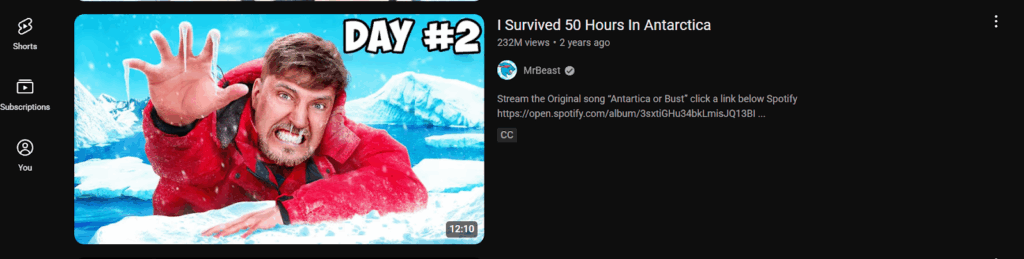
MrBeast’s thumbnails often feature a single, bold image, like his face or a key prop. His thumbnail for “I Survived 50 Hours in Antarctica” shows him shivering with ice, clearly signaling the challenge without distractions.
2. Leverage Vibrant Colors and High Contrast
Bright colors like red, yellow, or blue grab attention, while high contrast between text, images, and backgrounds ensures readability within the 16:9 frame. Avoid colors that blend with YouTube’s interface, like white text on light backgrounds. This makes thumbnails pop on mobile and TV screens.
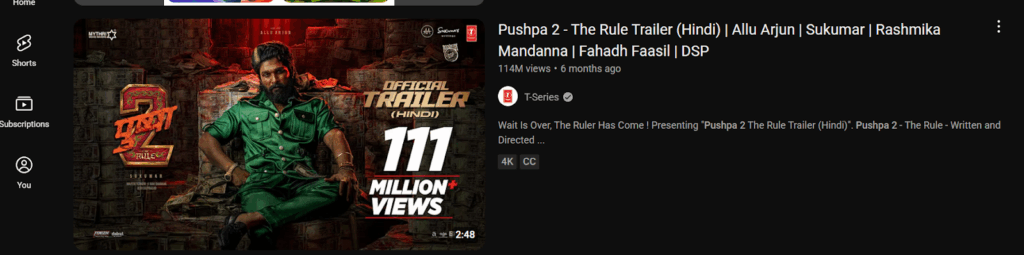
T-Series uses vibrant reds and yellows in thumbnails for Bollywood trailers, like “Pushpa 2.” The bold colors contrast sharply with white text, making the thumbnail eye-catching even at small sizes.
3. Optimize Text for Readability
Use concise text with bold, sans-serif fonts at least 24pt for mobile visibility. You should also add outlines or shadows to ensure text stands out against busy backgrounds. While placing text in the safe zone to avoid cropping. This aligns with YouTube’s display requirements.
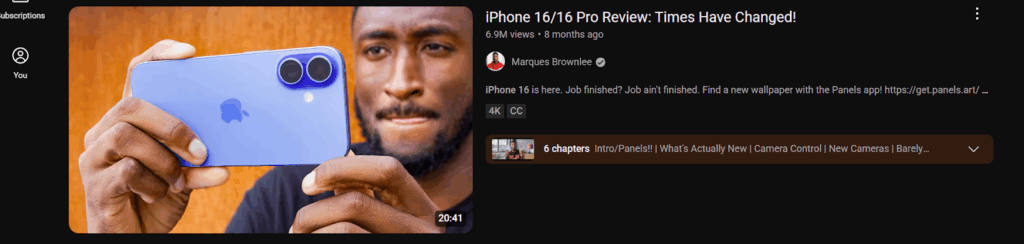
Marques Brownlee (MKBHD) uses minimal text in thumbnails, like “iPhone 16/16 Pro Review: Times Have Changed!” His bold, white text with black outlines on tech-focused images ensures clarity across devices.
4. Incorporate Emotional or Dynamic Imagery
Images with expressive faces or action shots evoke curiosity and emotion, driving clicks. You should ensure the images are of high-resolution, at least 1920×1080 before cropping to 1280×720 to avoid blurriness.
Center key elements to fit the 16:9 aspect ratio and safe zone for consistent display.
Yoga With Adriene’s thumbnails, like for “Morning Yoga Flow,” feature her in dynamic poses with warm, inviting expressions, drawing viewers in while fitting the 16:9 frame perfectly.

5. Maintain Consistent Branding
Use consistent colors, fonts, or logos to build channel recognition. This helps thumbnails stand out while reinforcing your brand within the 1280×720 canvas. Consistency aids viewer recall across YouTube’s crowded interface, especially in suggested videos or subscriptions.
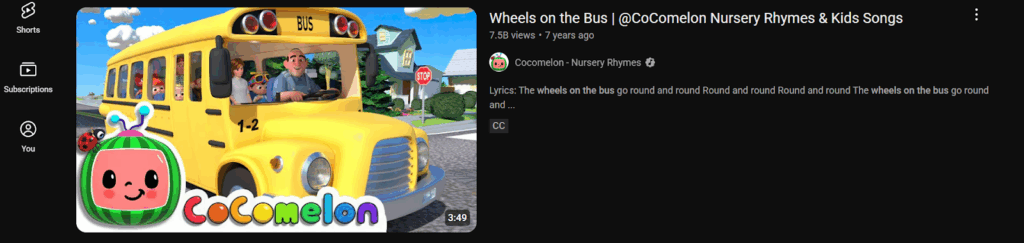
Cocomelon’s thumbnails use bright primary colors and familiar characters in every video, like “Wheels on the Bus,” creating a recognizable style that fits the 16:9 ratio and appeals to kids and parents.
How To Upload YouTube Thumbnail?
You have your thumbnail ready, you’ve gone through the guide and come up with a befitting design for your video. The next step is to upload it. And this section shows you how to do that successfully, even if you’ve never uploaded a YouTube thumbnail before.
To add or change the thumbnail for an already uploaded YouTube video:
Step 1: Visit YouTube Studio and sign in if required.
Step 2: Choose Content from the list of options at the left corner of the screen.
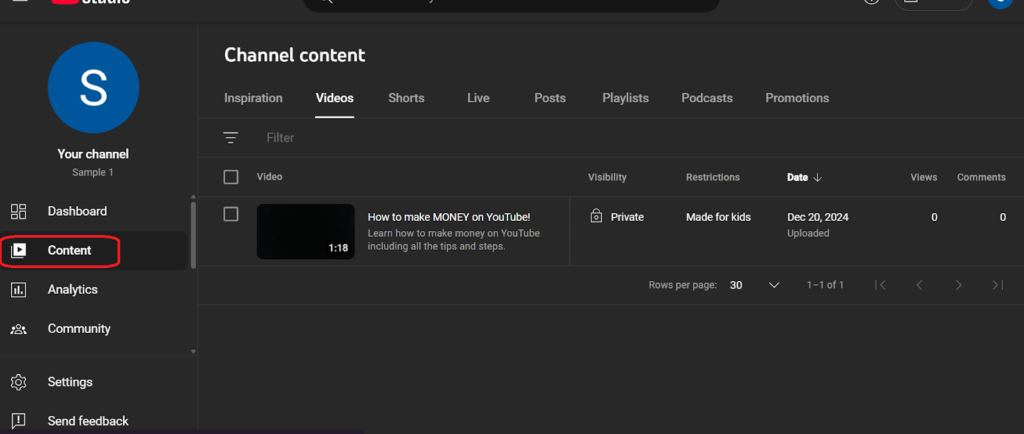
Step 3: Select the video by tapping either the title or image.
Step 4: Scroll down to the thumbnail section.
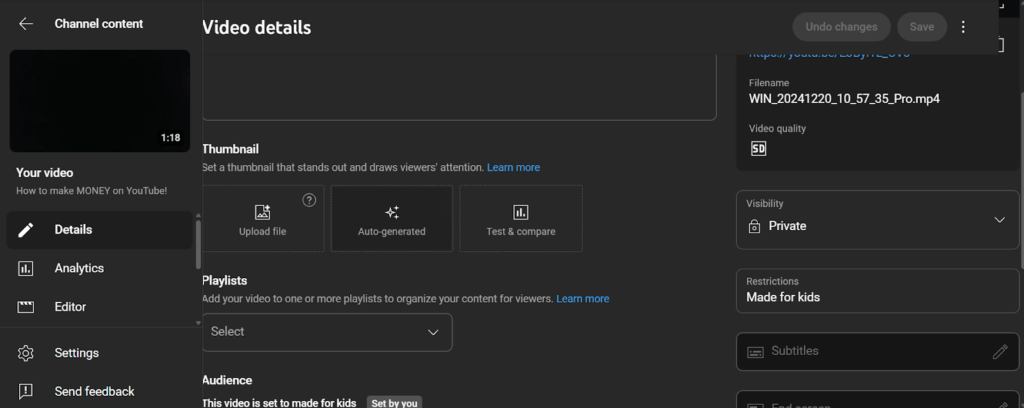
Step 5: Choose “Upload a Thumbnail” to add a thumbnail you or your designer made for the video. Bear in mind that you will be asked to verify your account if you haven’t already. It only requires verifying your phone number.

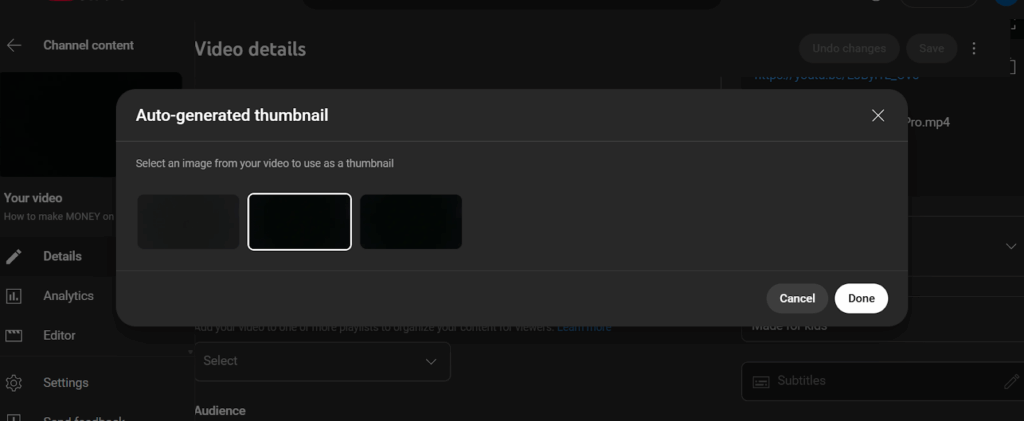
Step 6: Or select the AI-degenerated option and click Done to use one of the three options generated by AI.
Common YouTube Thumbnails Pitfalls To Avoid
While trying to make YouTube thumbnails that fit the YouTube resolution and get views, you may unknowingly make some errors that can disrupt your efforts. Here are some pitfalls to avoid for the best results with your thumbnails.
1. Overloading with Text or Elements
Cluttered thumbnails with too much text or imagery confuse viewers. They can’t quickly grasp the video’s focus, especially on small mobile screens. Stick to one or two key visuals and limit text to 4-6 words. Simplify your design by focusing on a single bold image with concise text within the safe zone, centered at 1080×720.
2. Ignoring Mobile Optimization
Thumbnails often look great on desktops but fail on mobile, where over 60% of YouTube views occur. Small text or edge-placed elements get cropped or become unreadable. Use large fonts of at least 24pt minimum and center key visuals in the safe zone to ensure clarity across devices.
3. Using Misleading Clickbait
Thumbnails that promise something the video doesn’t deliver frustrate viewers, leading to quick exits and lower watch time. This hurts your ranking in YouTube’s algorithm. To fix this, ensure thumbnails accurately reflect video content, using relevant images and truthful text to build trust.
4. Inconsistent Branding
Varying colors, fonts, or styles across thumbnails makes your channel look unprofessional and hard to recognize. Use consistent brand elements, like a specific color palette or logo, in every 1280×720 thumbnail to create a cohesive look.
5. Using Low-Quality Images
Blurry or pixelated images look unappealing, especially on high-resolution TVs or monitors. They fail to meet YouTube’s quality expectations. The key is to start with high-resolution images of at least 1920×1080 before cropping and exporting in PNG or JPG under 2MB for crisp visuals.
Final Thoughts
Getting the perfect thumbnail size for your YouTube video will ensure your video fits, doesn’t look out of place, and gets you views.
Effective YouTube thumbnails are key to boosting clicks and views. So stick to the 1280×720 pixel, 16:9 aspect ratio, and keep files under 2MB using JPG or PNG. Making thumbnails with this in mind will ensure you stay within the perfect parameters.
You also have to avoid issues of clutter, misleading clickbait, inconsistent styles, or low-quality images. Always test thumbnails across devices to ensure clarity and impact, turning browsers into viewers.
Doing this yourself can be a hassle for many creators, as they prefer to focus on creating content while professional thumbnail design services handle their thumbnails.
Your Video Editor is the top choice among creators on YouTube. Editing your videos and providing exceptional thumbnail design with the right dimensions in mind. This way, you get the click and engagement.