Creators make videos for viewers to enjoy, but sometimes this does not feel right for all viewers, which leads to some not liking that video.
The like and dislike button has been available since early 2010 to help the audience to give feedback. It also alerts the algorithm on the type of videos the viewer prefers. While the advantages were clear, YouTube noticed that the dislike button was sometimes used to attack creators, especially smaller ones.
So in 2021, YouTube removed the dislike count while still leaving the button. So now viewers can still dislike a video they didn’t agree with but cannot see the count. Creators on the other hand can still see all the dislikes from their YouTube Studio.
Even though YouTube has removed the dislike count, there are still ways for viewers to see dislikes on videos. It doesn’t matter if you’re using your phone or watching videos on the desktop.
If you want to see the dislikes count on videos you watch, you’re at the right place, as we’ll show you the different methods that you can use to see dislikes including browser extensions. You’ll also learn the detailed steps to achieve.
Want to take your videos to the next level?
Why YouTube Removed Dislike Count?
YouTube introduced the like and dislike count in 2010 to replace the star-based rating system that started to seem flawed.
In November 2021, YouTube announced a significant change by hiding public dislike counts on videos across its platform. The decision stemmed from the platform’s aim to curb coordinated dislike campaigns.
YouTube explained that such attacks, where groups deliberately downvote content to harm creators, created a toxic environment. And by hiding these numbers, the platform sought to protect smaller creators who were disproportionately targeted by organized efforts.
Additionally, YouTube cited experiments showing that public dislike metrics sometimes influenced viewers to downvote videos without watching them, skewing feedback unfairly.
Community responses quickly emerged to counter the update. Developers created browser extensions and websites to restore dislike visibility, drawing on archived data and user contributions.
These tools reflected a user-driven push to reclaim a feature deemed essential for informed viewing choices, highlighting the tension between YouTube’s policies and its audience’s expectations.
How Dislike Count Tools Work?

To counter the hidden dislike count for viewers, different tools were introduced to allow viewers to still see the dislike count. But how do they actually work?
These third-party tools rely on clever methods to bypass the platform’s 2021 decision to hide YouTube dislike counts.
They pull data from multiple sources, including YouTube, as it features dislikes before December 2021. Developers also gather anonymized user-submitted data through browser extensions, where viewers voluntarily share their dislike or like actions to build a collective database.
It gets a little more predictive with some tools employing algorithms to estimate dislike counts based on like-to-dislike ratios observed in historical data.
This approach ensures reasonable accuracy, particularly for popular videos with substantial interaction. However, estimates for less-viewed or recently uploaded videos may lack precision due to limited data points.
Some of these third-party tools modify the video page to show the dislike count alongside likes. While some others will require you to input the video’s URL to get the dislike count estimate.
How To See Dislikes as a Viewer?
Since YouTube made it impossible for viewers to officially see dislike counts on videos, the only way to do so now is through third party tools which may include websites, app, and browser extensions.
Here are detailed steps to use the different third-party tools to see dislikes on YouTube videos:
1. Return YouTube Dislike Browser Extension
Return YouTube Dislike is arguably the most popular tool to view dislikes on YouTube. This open source extension is available for use on Chrome, Firefox, Edge, Opera, and even on mobile browsers like Kiwi, which means it also works on mobile.
It is easy to use since you can see the count directly on the video page with Return YouTube Dislike using a blend of archived data and user contributions to estimate the dislikes.
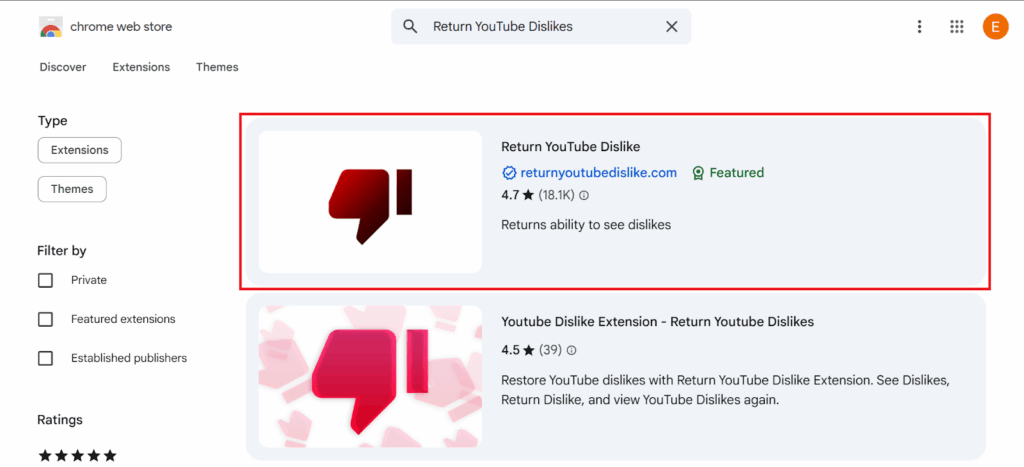
With over 6 million users and a 4.7 rating out of 5, it is obvious Return YouTube Dislike is doing something right. If you’re looking to install this extension and use it, here is a detailed step-by-step guide to achieve this:
Step 1: Visit the webstore of your chosen browser and search for “Return YouTube Dislike”.
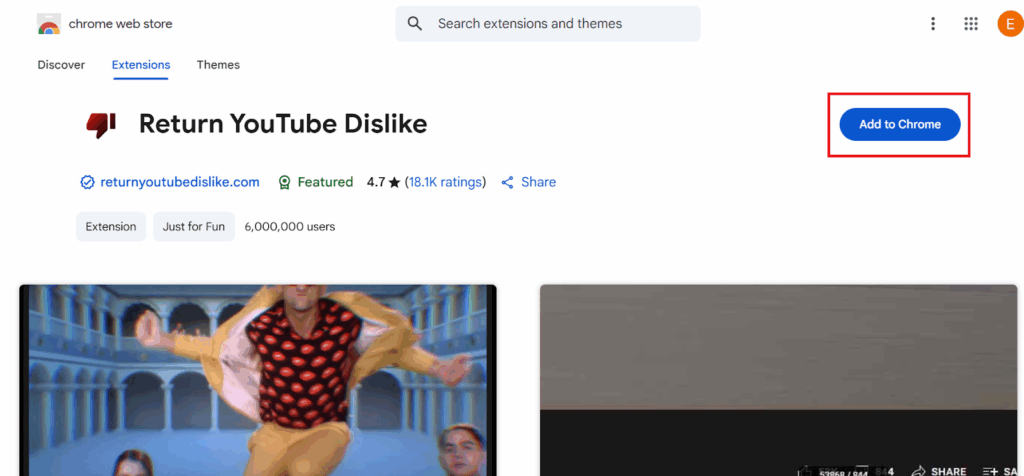
Step 2: Click on “Add to Chrome” to install the extension.
Step 3: Go to YouTube and click on a video. Check the like and dislike section below the video to see the dislike count.

2. TimeSkip AI (Website Alternative)
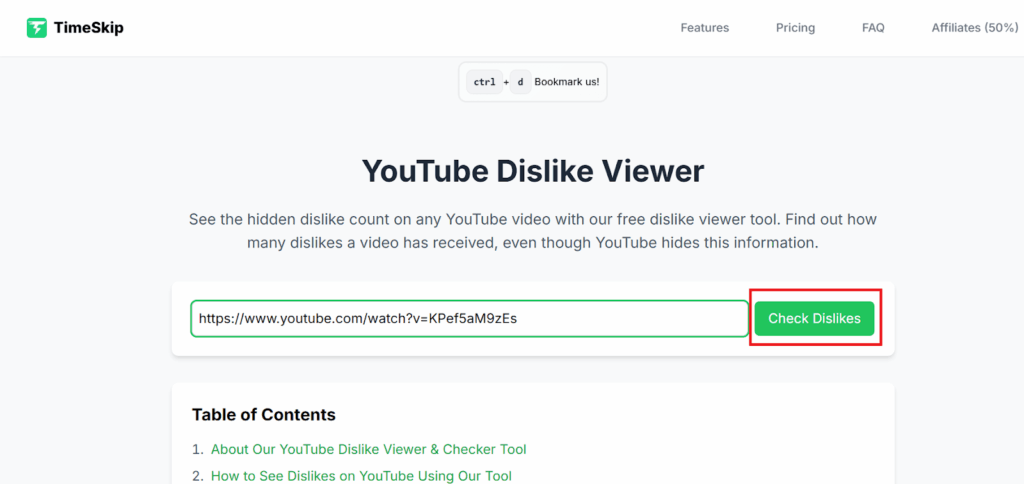
TimeSkip AI, primarily known for generating SEO-optimized YouTube video chapters, also offers a web-based method to view YouTube dislike counts by analyzing video URLs.
This tool is ideal for users who prefer not to install browser extensions or need a quick, one-off check. All you need to do is input the URL on the website.
TimeSkip AI leverages APIs like Return YouTube Dislike for accurate estimates and ensures user privacy by not storing input data. Here’s a detailed step to follow:
Step 1: Visit the TimeSkip AI free YouTube video dislike checker link.
Step 2: Copy the URL of the YouTube video you want to analyze.
Step 3: Paste the URL into the designated input field and click “Check Dislikes.”
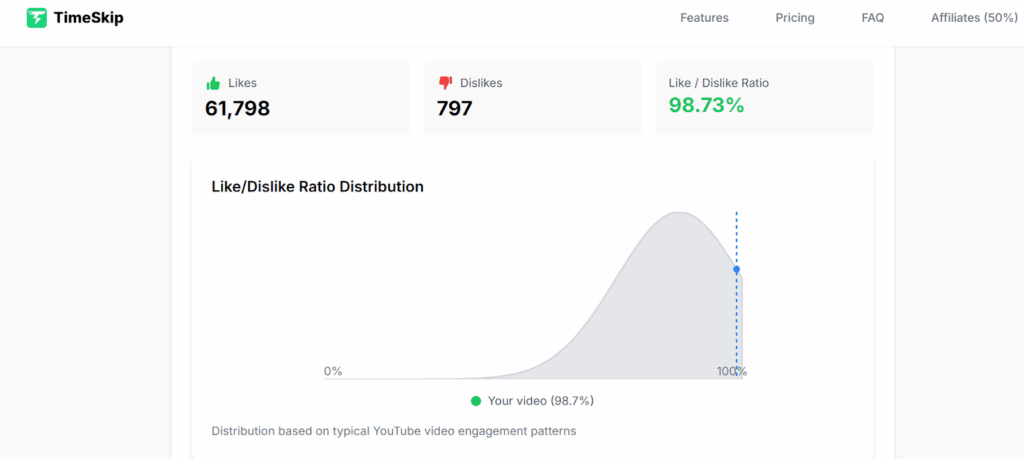
Step 4: View the estimated dislike count and like-to-dislike ratio displayed on the results page.
3. ReVanced (For Mobile Users)
If you’re a bit more technical, you may be fascinated by this option of seeing dislikes when watching videos on mobile.
ReVanced is a modified version of the YouTube app for Android, offering features like ad-blocking, background playback, and dislike count restoration. It’s a community-driven project built on the legacy of YouTube Vanced.
You can see dislike counts below videos as the app integrates with YouTube’s interface and supports additional customizations like theme changes. Here’s how to use this app:
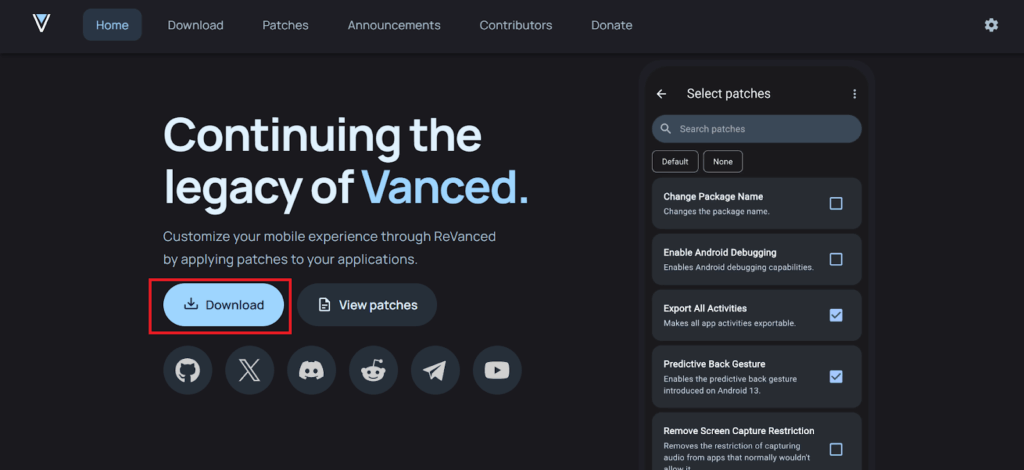
Step 1: Download the ReVanced Manager APK from the official ReVanced website.
Step 2: Enable “Install from unknown sources” in your Android settings.
Step 3: Open ReVanced Manager, select the YouTube app, and apply the “Restore Dislike Counts” patch.
Step 4: Install the patched YouTube app and log in with your Google account.
Step 5: Open a video to verify dislike counts appear alongside likes.
How to See Dislikes as a Creator?
Even though YouTube has removed the dislike count from the video page, creators can still see the dislikes on their videos directly from YouTube Studio.
Knowing your likes to dislike ratio will help you gauge how effective your video creation process has been. Especially if you’re putting more effort into video editing like using expert editors like Your Video Editor.
If you’re a creator looking to see the dislikes your videos are getting, here is a step-by-step process to do this on desktop, although a similar process is required for mobile:
Step 1: Visit YouTube Studio and sign in.
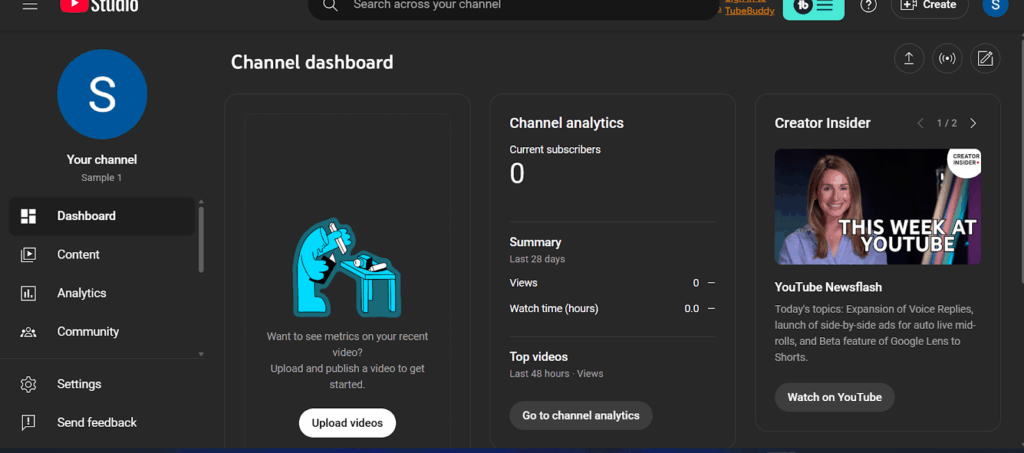
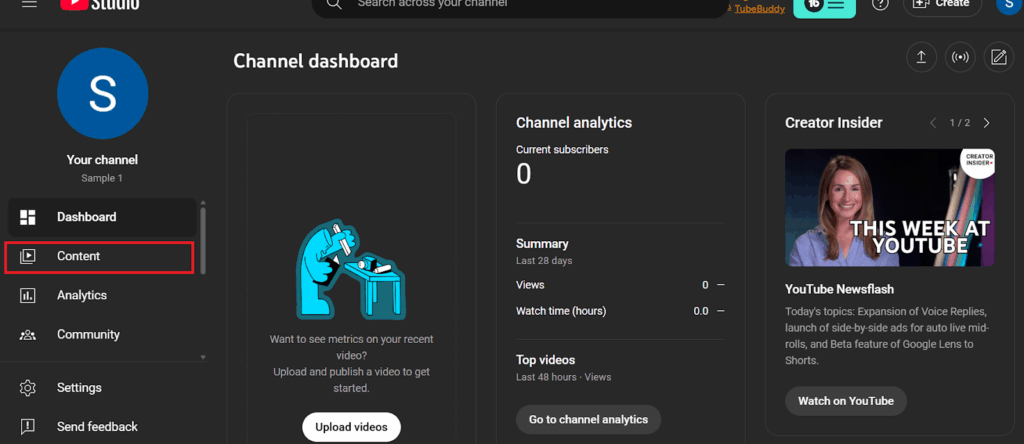
Step 2: Select “Content” on the left side of the screen.
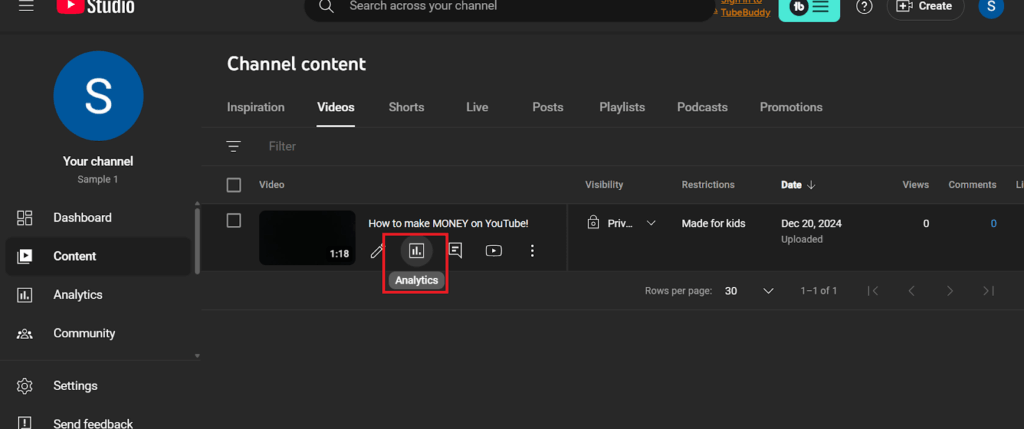
Step 3: Hover over the chosen video to reveal further options. Tap on the “Analytics” option on the video.
Step 4: Switch to the Engagement tab and then scroll down to see the likes and dislikes on the video.

Are These Third Party Tools Safe to Use?
Using third-party tools is not particularly safe to use, as you may be exposing your data to unknown sources.
However, it depends on the tool and medium as websites where you only need to input the YouTube URL to see the dislikes are safe to use since you’re not sharing any personal details.
For browser extensions, the data sharing may be minimal but it still exposes some of this private information. You have to make sure the extension you choose to install is trustworthy and reveals all the data it collects and what it does with them.
The greatest risk is from third-party apps where you need to connect your Google account and login your YouTube through them. You have to be extremely careful and ensure you only use this if you fully trust the app.
Considering that these tools are not part of the official YouTube third-party list, there are going to be some safety concerns.
Understanding these risks and taking precautions can help ensure a secure experience. Below, we explore the safety of these tools and break down the specific risks involved.
Privacy Risks
Many of these tools collect user data to improve the accuracy of their estimates. This data may include like or dislike actions you perform on YouTube videos.
While most reputable tools take this data without their personal identifiers, there’s a chance that poorly designed or malicious extensions could track additional browsing activity.
To minimize this risk, always download extensions from trusted sources like the Chrome Web Store or Firefox Add-ons.
Also, check the tool’s privacy policy on its official website and disable data-sharing options in the extension’s settings if available. For web-based tools like TimeSkip AI, ensure the site uses HTTPS to protect data transmission.
Security Risks
Browser extensions require permissions to modify YouTube’s interface, which can pose security concerns if the extension is not from a trusted developer.
You’re at risk of exposing sensitive information like login credentials or browsing history to malicious extensions if you grant overly broad permissions.
Wondering what the solution could be?
Verify the developer’s reputation by checking user reviews and the tool’s GitHub repository for open-source projects. Avoid sideloading APKs for mobile solutions from unofficial sources, as they may contain malware.
For iOS users, stay away from jailbreaking just to install certain dislike-viewing apps so you can continue enjoying Apple’s built-in protections.
Reliability and Maintenance Risks
There’s also the worry about the reliability of the tool you choose. YouTube is always updating its API, which may render most of these tools obsolete. However, well-run ones tend to get immediate updates, so users keep enjoying the features.
Be ready for downtimes during these upgrades, when their servers are overloaded, or if their data sources are restricted.
To fix this, choose tools with active development communities, as indicated by recent updates on their GitHub pages or official websites. Although you may need a bit of technical knowledge to understand any of the updates on their GitHub.
Ethical and Legal Considerations
While using third-party tools to view dislike counts is generally legal, as they leverage publicly available data or user contributions.
However, YouTube’s terms of service discourage modifying the platform’s interface or scraping data, which could theoretically lead to account restrictions, though such cases are rare for individual users.
You should avoid using dislike data to harass creators, as this undermines the community-driven purpose of these tools. Stick to reputable tools that prioritize transparency and ethical use, such as those with open-source codebases.
How Accurate Are These Third-Party Tools?
Considering YouTube stopped showing dislike data to viewers in November 2021, it is pretty normal to be curious about the accuracy of all these third-party apps that offer dislike viewing. If YouTube does not provide that data to users, how accurate can these tools be?
The precision of third-party tools designed to restore YouTube dislike counts varies based on multiple factors, including data sources and video characteristics.
Since YouTube ceased displaying public dislike counts in 2021, these tools rely on alternative methods to estimate dislikes, achieving reliable but not perfect results.
For videos uploaded before December 2021, these tools often provide highly accurate counts by leveraging archived data from when dislikes were publicly visible. These historical records, combined with user-submitted data, yield close approximations for older content.
However, for videos posted after YouTube’s policy change, accuracy depends on algorithms estimating dislike counts based on like-to-dislike ratios from similar videos.
So let’s just say the precision is close enough for popular videos, but not so much for newly posted or niche videos. This is especially for web-based tools that pull data from APIs or community contributions.
While no tool guarantees exact dislike counts, they collectively offer a dependable gauge of viewer sentiment, particularly for trending videos.
Final Thoughts
YouTube may have taken away the count for dislikes from the video screen to protect creators, but some viewers use it to quickly measure a video’s quality. Which is why third-party tools that reveal dislike counts are in high demand.
With the different methods available from browser extensions to websites and app, viewers have a lot of options to choose from when looking to view dislike counts on YouTube.
However, they have to be wary of their privacy and the safety of their data when using these third-party tools.
For creators, there’s no need to worry as they can view their videos’ likes and dislikes right from their YouTube Studio. So they can continue to analyze their video’s progress. This is particularly important to understand what needs to be improved and the edits to be made.
Talking about edits, you’re likely to get a high dislike rate on your videos as a creator without smart editing. Which is why using one of the best video editing services in Your Video Editor is a brilliant decision to make if you want to grow your channel and avoid high dislikes on your videos.